
Blackout Motion Toolkit for DaVinci Resolve
900+ templates: 818 drag & drop Fusion titles, 69 looping generators and 12 media effects. No plugins. Every text, font, colour and timing lives in the Inspector; plates follow the length of your words; logos, photos and avatars swap with one Image File field.
900+titles, generators & effects
818titles
69generators
12media effects
New in the Toolkit: Globe. A turning Earth that flies city to city with arcs, pulsing dots and labels - type the cities, pick Map or Dots, done. Plus Typewriter, Film Credits and Chat - see their real settings.
Who it is for
YouTubers & creatorsIntros, lower thirds, subscribe buttons, chat bubbles, kinetic hooks for Shorts and long videos.
Editors & agenciesClient-ready titles in seconds: brand colours, fonts and logos in the Inspector, any length of text.
Brands & marketersPromo scenes, covers, infographics with counting numbers, callouts and price tags.
Sport & fashionGrunge sport type, elegant fashion titles and a tinted, animated media place under the words.
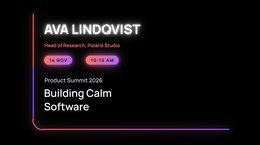
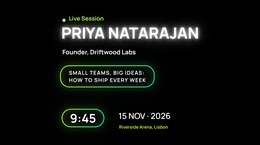
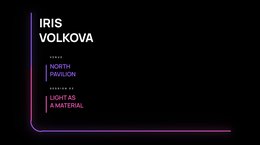
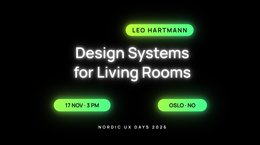
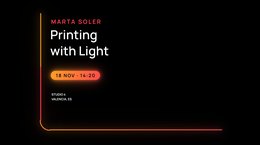
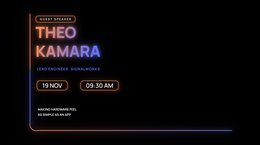
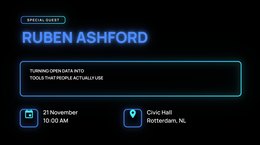
Events & talksSpeaker cards, timers, schedules and film-style credits.
Documentary & travelAn animated globe with routes, typewriter text and clean minimal titles.
Why it is easy
Drag & dropNative Fusion titles: Edit page → Effects → Titles → Blackout Motion Toolkit.
Everything in the InspectorTexts, fonts, colours, sizes, In / Out seconds, animation styles.
Plates fit the textBars, pills and frames grow with what you type.
Replaceable mediaLogos, photos, avatars and backgrounds: choose Image File and pick your file.
Media tintSport and fashion titles tint and animate your photo or video under the words.
Any projectAny resolution and frame rate; tested in DaVinci Resolve 20.
Featured titles & their settings
These are the real Inspector settings of our presets, exactly as you get them in DaVinci Resolve - so you know what you can change before you buy. The Shown column lists the values in the screenshots. Every text, colour, size and timing is a field in the Inspector; no Fusion page needed.
GlobeTL_Globe
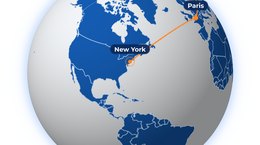
A turning Earth that flies from city to city: flight arcs, pulsing city dots and labels. Drawn in Fusion from open map data - no 3D plugin, no footage. Type the cities, the globe does the tour.

How to use
- Drag TL_Globe (Titles → Blackout Motion Toolkit → 15. Globe) onto a track. Make the clip as long as the tour you need.
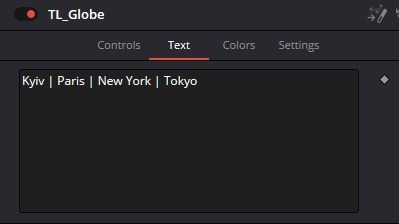
- Text tab: type the cities, separated by
|or new lines - e.g.Kyiv | Paris | New York | Tokyo. Up to 6 cities per tour. - A city the globe does not know? Type its coordinates instead:
50.45, 30.52(latitude, longitude). - Controls: pick the Style - Map (solid land with country borders) or Dots (a dot-matrix globe) - and set Seconds Per City.
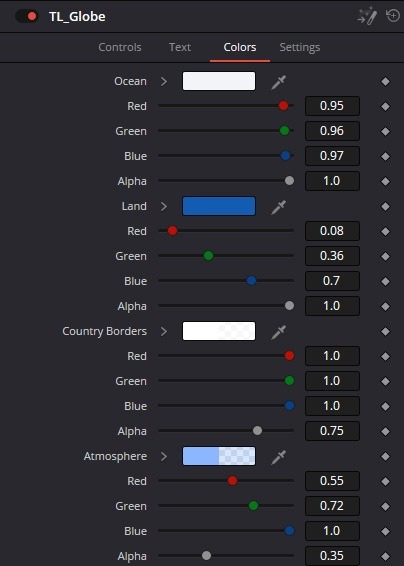
- Colors: ocean, land, borders, atmosphere, arcs, city dots and labels. Background is white; set its Alpha to 0 to put the globe over your footage.
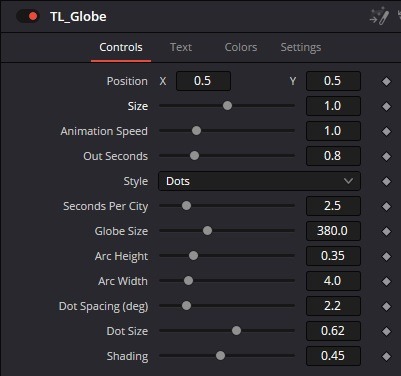
| Setting | Shown | What it does |
|---|---|---|
| Position X / Y | 0.5 / 0.5 | Where the globe sits in the frame. |
| Size | 1.0 | Scales the whole title. |
| Animation Speed | 1.0 | Speed of the whole tour: below 1 slower, above 1 faster. |
| Out Seconds | 0.8 | Length of the exit at the end of the clip. |
| Style | Dots | Map - solid land and country borders; Dots - land drawn as a dot matrix. |
| Seconds Per City | 2.5 | How long each flight takes, city to city. |
| Globe Size | 380 | Radius of the globe in pixels at 1080p (scales with any project height). |
| Arc Height | 0.35 | How high the flight arcs lift above the surface. |
| Arc Width | 4.0 | Thickness of the flight arcs. |
| Dot Spacing (deg) | 2.2 | Dots style: distance between dots, in degrees. Smaller = finer grid. |
| Dot Size | 0.62 | Dots style: how much of its cell each dot fills. |
| Shading | 0.45 | Light and shade on the sphere; 0 = flat colour. |
| Cities (Text tab) | Kyiv | Paris | New York | Tokyo | The tour, in order. Names from the built-in list of 200+ world cities, or lat, lon. Labels show the city as you typed it. |
| Colors tab | - | Ocean, Land, Country Borders, Atmosphere, Flight Arcs, Arc Head, City Dots, City Pulse, Label Plate, Label Text, Background - each with its own Alpha. |
TypewriterTL_Type_01 ... TL_Type_10
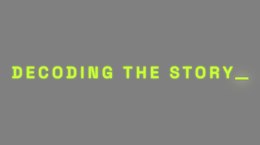
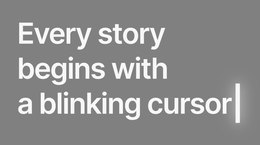
Text that types itself on with a live cursor: letter by letter, word by word, a decoding scramble, or a retype that deletes and types the next word. Six cursor shapes, an optional highlighted word and a subtitle line.
How to use
- Drag any TL_Type_ title (12. Typewriter) onto a track above your clip.
- Type your words in the first text box. Line breaks are kept. Cyrillic and other alphabets work.
- Retype presets: separate the takes with
|-Good|Better|Besttypes a word, deletes it back and types the next. - Two-box presets (like TL_Type_07): the second box is the Subtitle - it fades in once the main text is typed.
- Set Typing Speed, the cursor look and colours. The last Delete Seconds of the clip erase the text back to nothing - trim the clip to time it.
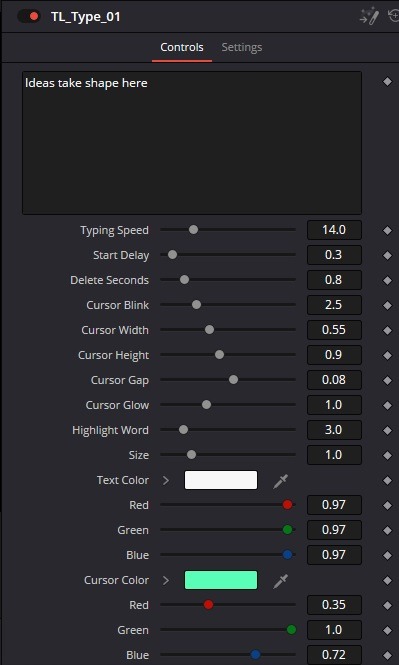
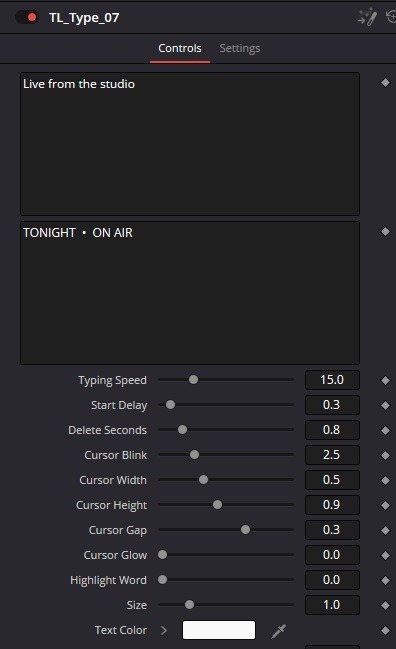
| Setting | Shown | What it does |
|---|---|---|
| Text | Ideas take shape here | The typed text. | separates the takes of a retype title. |
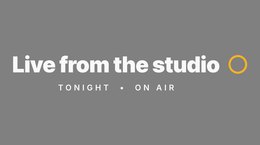
| Subtitle | TONIGHT • ON AIR | Second line (some presets) - appears after the typing. |
| Typing Speed | 14 - 15 | Characters per second (words per second in word-by-word presets). |
| Start Delay | 0.3 | Seconds before the first letter. |
| Delete Seconds | 0.8 | The last seconds of the clip delete the text; 0 = it stays to the end. |
| Cursor Blink | 2.5 | Blinks per second once the text is typed; 0 = always on. |
| Cursor Width / Height | 0.55 / 0.9 | Cursor size, relative to the letters. |
| Cursor Gap | 0.08 | Space between the last letter and the cursor. |
| Cursor Glow | 1.0 | Soft glow around the cursor; 0 = none. |
| Highlight Word | 3 | Number of the word that is lifted and recoloured (Highlight Color); 0 = off. |
| Size | 1.0 | Scales the whole title. |
| Text Color / Cursor Color | white / mint | Any colour, with the picker or RGB values. |
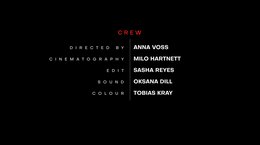
Film CreditsTL_Film_Credits
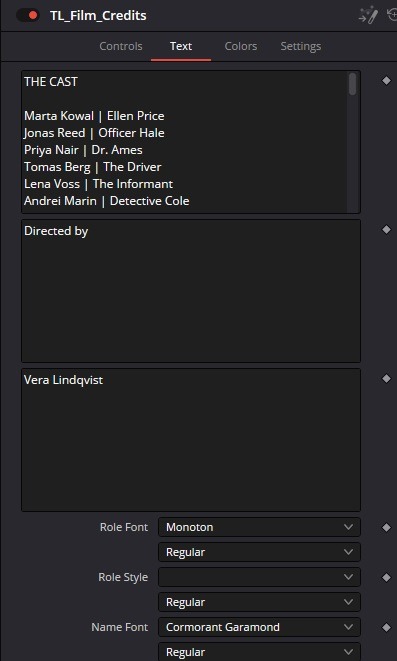
Film credits in one title: a single role-and-name card, a cast list in up to 4 columns, or the classic end roll. Six card layouts and seven animations - every font, size and colour in the Inspector.
How to use
- Drag TL_Film_Credits (17. Credits) onto a track.
- Pick the Mode: Card (one role + one name), List (a cast list on screen) or Roll (the list rolls up through the frame).
- Text tab: the big box is the list. A line
Left | Right(e.g.Marta Kowal | Ellen Price) sets the two parts either side of the centre; other lines are centred headings. The next two boxes are the card's Role and Name. - Roll: the length of the clip sets the speed - a longer clip rolls slower.
- Choose Role, Name and List fonts on the Text tab; colours on the Colors tab.
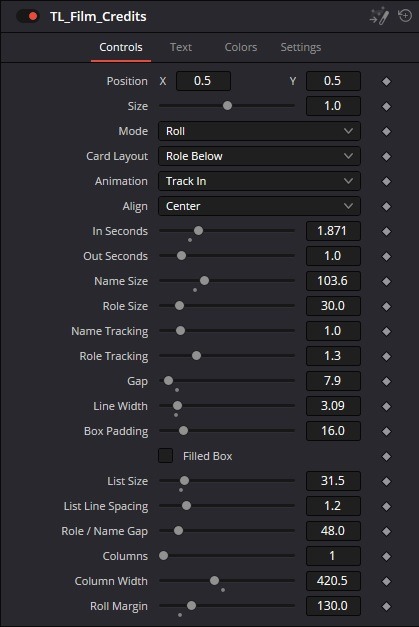
| Setting | Shown | What it does |
|---|---|---|
| Mode | Roll | Card - one role and name; List - a static list; Roll - the list rolls from below the frame to above it. |
| Card Layout | Role Below | Role Above, Role Below, Role Beside (with a divider), Role In Box, Between Lines, Side Rules. |
| Animation | Track In | Fade, Rise, Track In (letters close up), Blur In, Box Reveal, Letters (typed on), Wipe. The exit plays it backwards. |
| Align | Center | Center, Left or Right. |
| In / Out Seconds | 1.87 / 1.0 | Length of the entrance and of the exit. |
| Name Size / Role Size | 103.6 / 30 | Card text sizes. |
| Name / Role Tracking | 1.0 / 1.3 | Letter spacing of the name and of the role. |
| Gap | 7.9 | Distance between the role and the name. |
| Line Width / Box Padding | 3.09 / 16 | Lines and box of the Role In Box, Between Lines and Side Rules layouts. |
| Filled Box | off | A solid box with the text knocked out in its own colour. |
| List Size / List Line Spacing | 31.5 / 1.2 | Size and line spacing of the list. |
| Role / Name Gap | 48 | Space between the left and right parts of a Left | Right line. |
| Columns / Column Width | 1 / 420 | Up to 4 columns, entries dealt row by row. |
| Roll Margin | 130 | Extra space before the roll enters and after it leaves. |
ChatTL_Chat_* (9 titles)
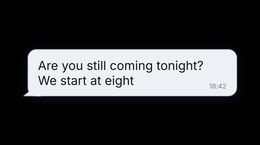
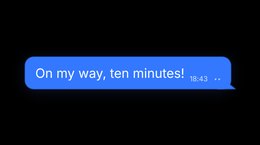
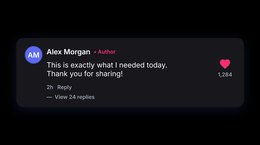
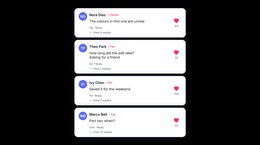
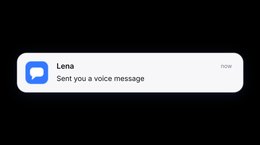
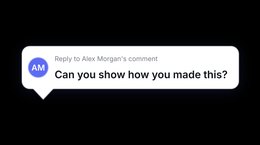
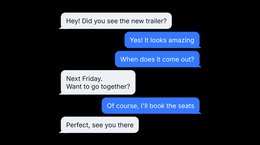
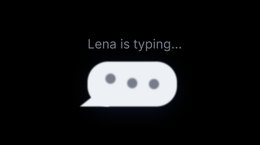
Messenger bubbles, a thread that scrolls as messages arrive, typing dots, comment cards with likes and replies, a comment feed, a reply sticker and a notification. Bubbles and cards size themselves to your words.
How to use
- Drag a TL_Chat_ title (14. Chat) onto a track.
- Text tab: type the messages. In a thread, start a message with
>to send it from the right (your side); leave a box empty to skip it. - Press Enter inside a message for a new line - the bubble grows with the text.
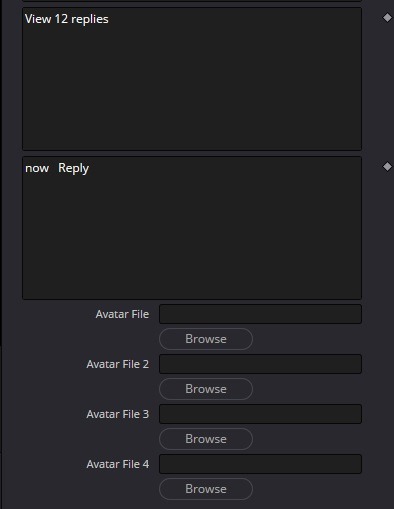
- Comments: name, badge, the comment, likes, View replies and time / Reply are all separate fields.
- Avatars are initials on a colour disc. For a photo, tick Avatar From File and pick the image in Avatar File (Browse) - it fills the circle.
| Setting | Shown | What it does |
|---|---|---|
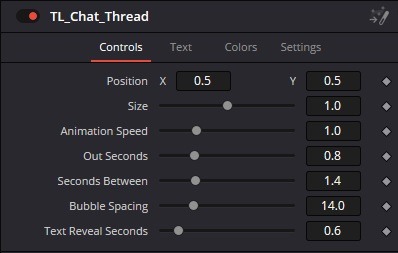
| Position X / Y | 0.5 / 0.5 | Where the chat sits in the frame. |
| Size | 1.0 | Scales the whole title. |
| Animation Speed | 1.0 | Speed of all the pops and reveals. |
| Out Seconds | 0.8 | Length of the exit at the end of the clip. |
| Seconds Between | 1.4 | Time between two messages (thread, feed). |
| Bubble Spacing | 14 | Space between the bubbles. |
| Text Reveal Seconds | 0.6 | How long a message takes to type into its bubble; 0 = at once. |
| Message 1 ... 6 | - | Thread: up to six messages; > at the start = right side. |
| Avatar File 1 ... 4 | empty | Your photos for the avatars (Comment Feed); empty = initials. |
| Colors tab | - | Bubble In, Bubble Out, Out Text, ink, badge and like colours. |
The library
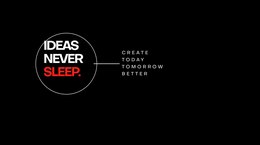
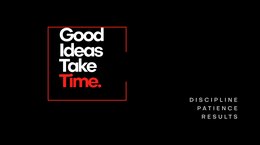
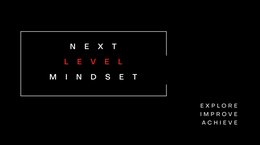
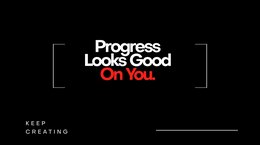
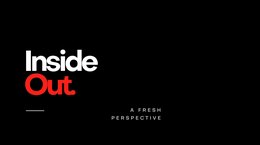
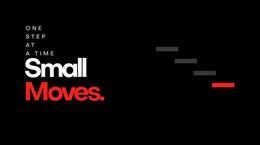
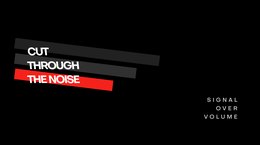
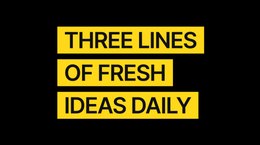
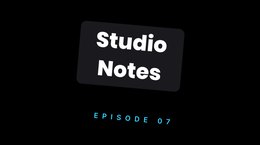
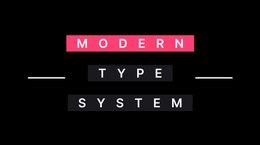
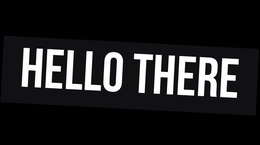
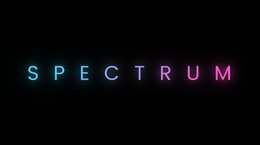
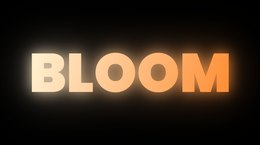
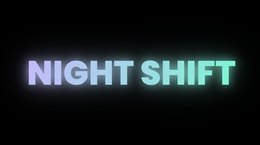
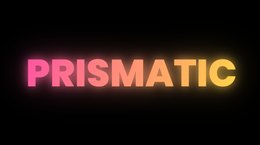
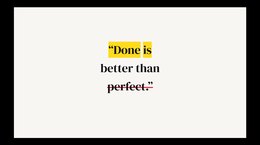
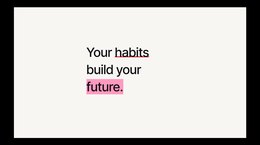
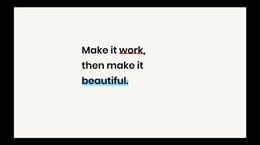
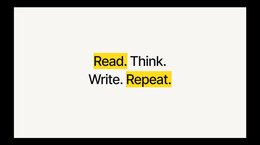
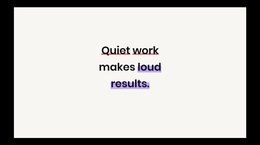
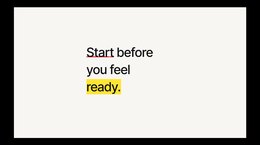
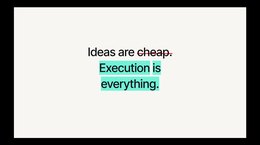
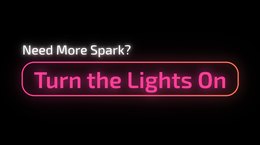
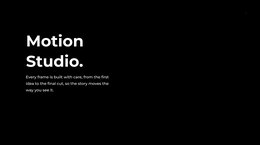
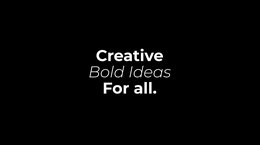
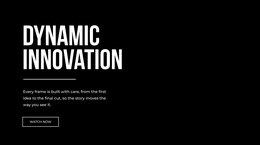
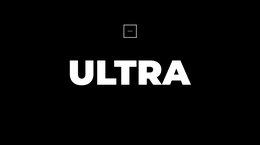
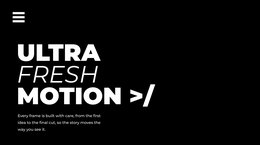
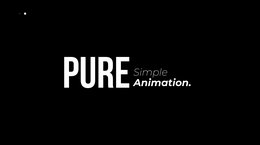
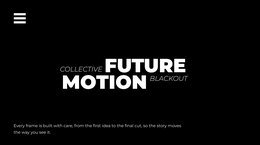
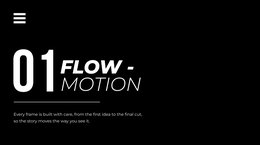
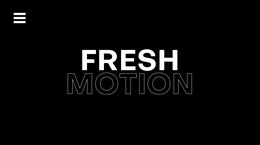
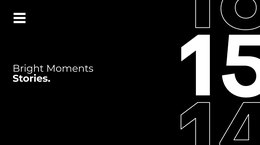
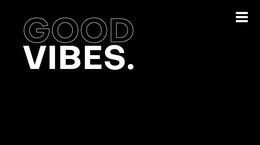
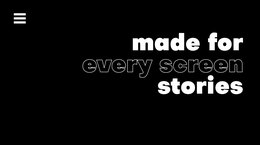
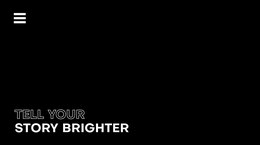
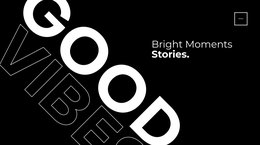
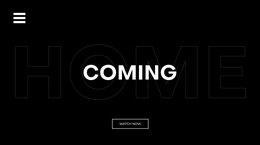
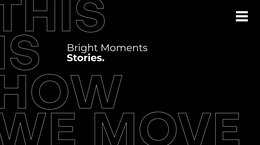
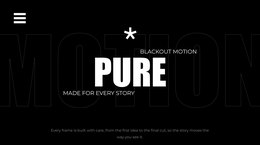
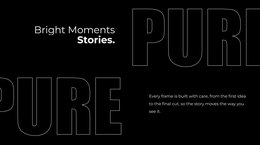
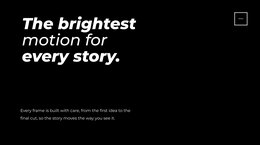
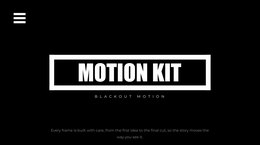
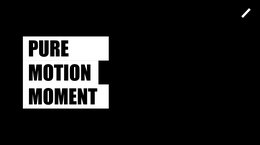
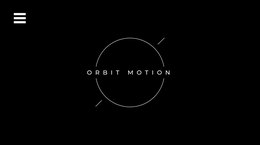
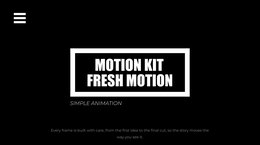
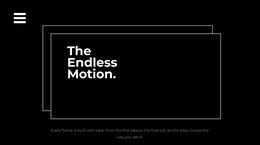
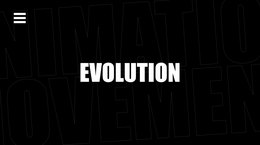
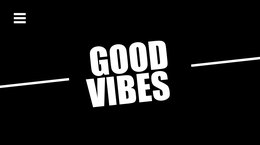
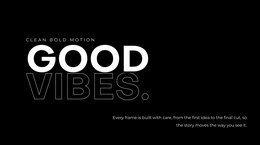
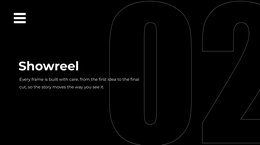
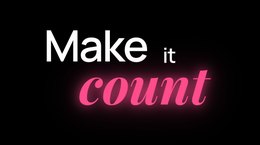
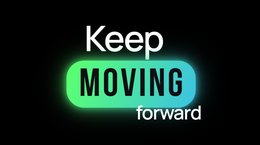
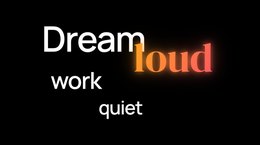
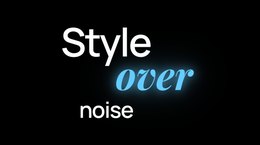
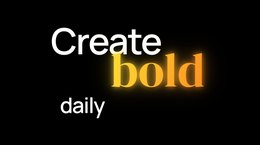
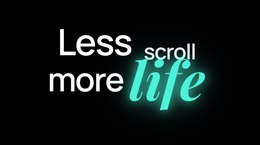
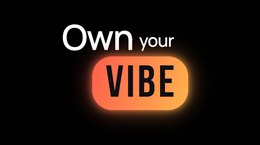
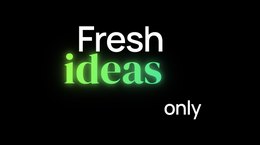
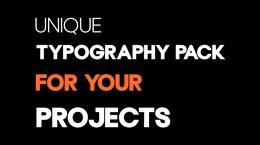
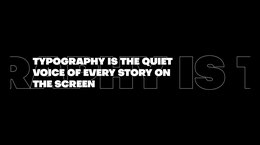
Typography · 142
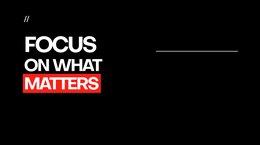
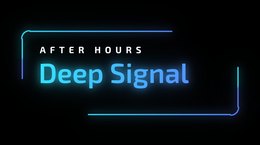
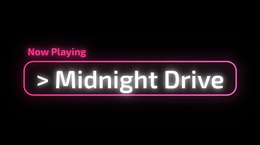
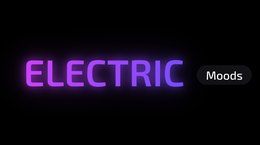
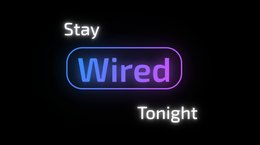
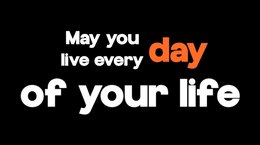
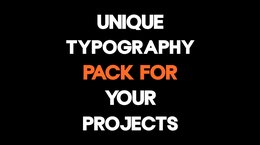
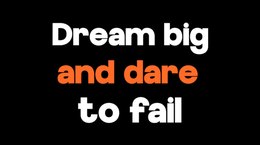
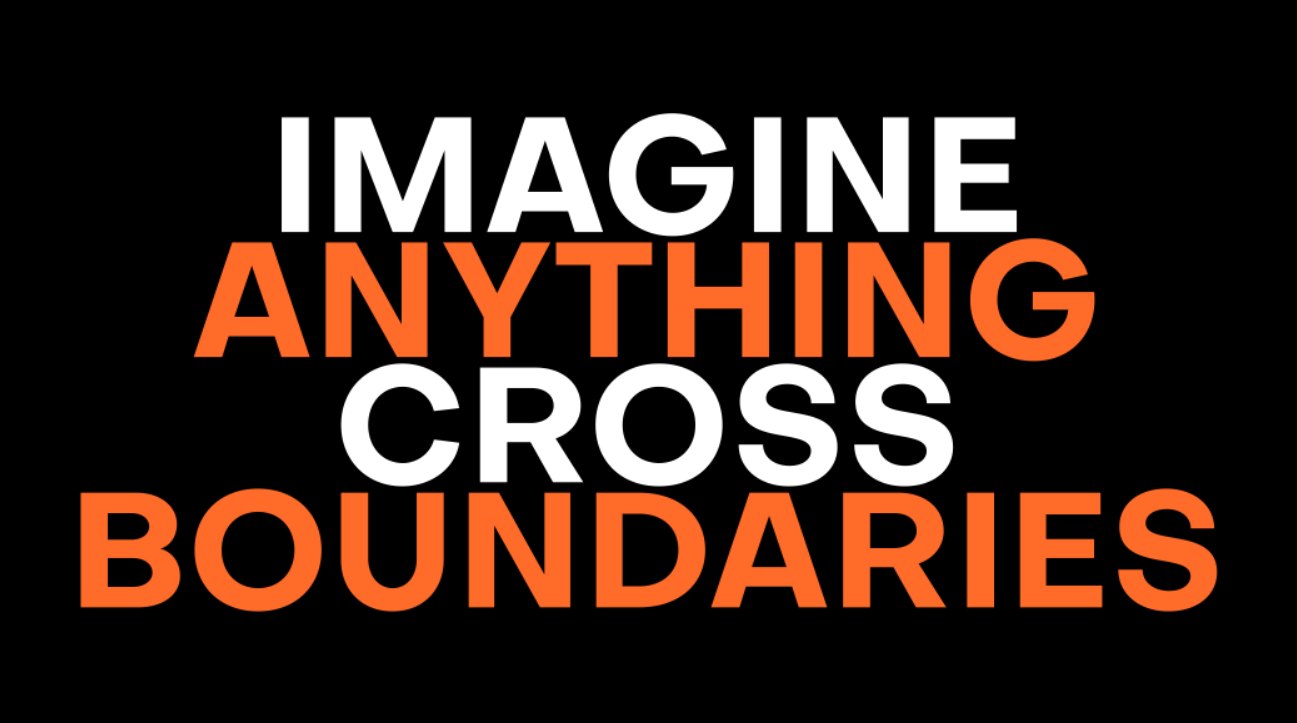
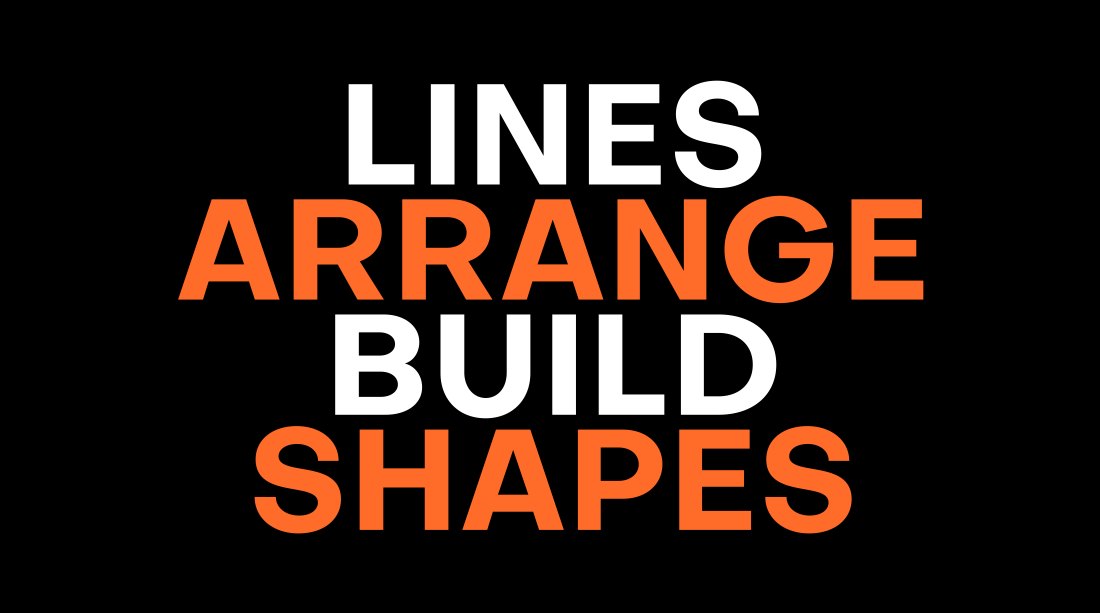
Glow, neon, marker highlights, word clusters and auto-fit boxes - headline type that grows with your words.




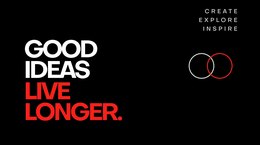
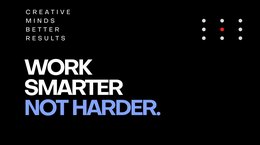

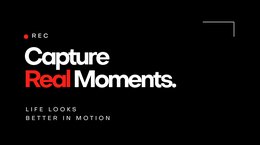

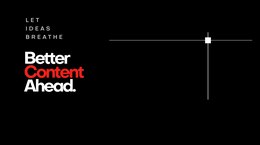
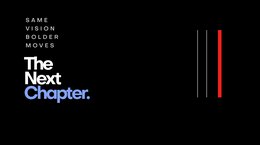

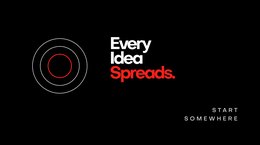
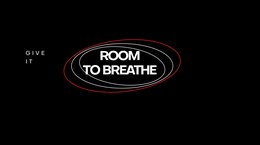

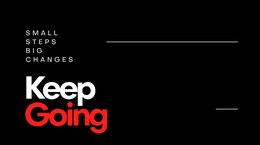























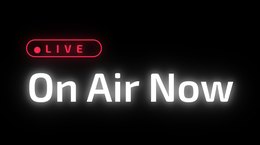
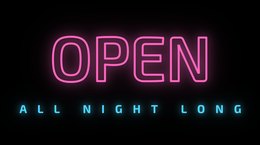
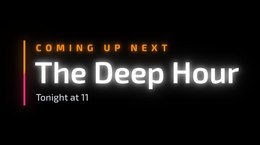

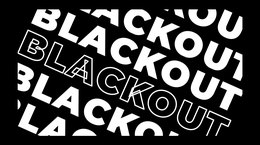












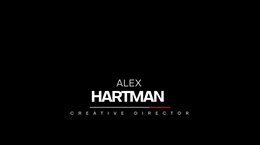
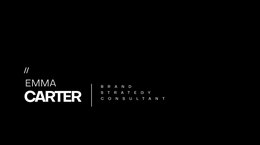
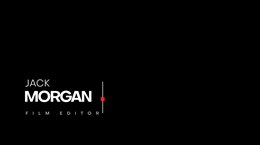
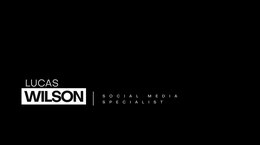
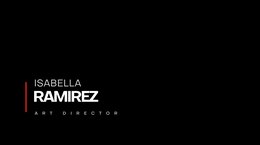
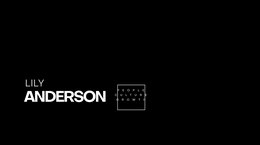
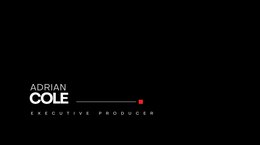
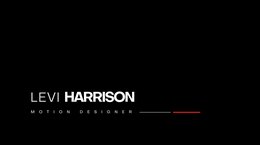
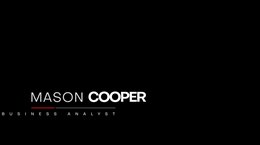
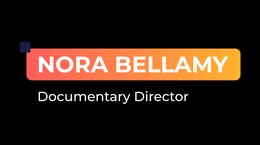
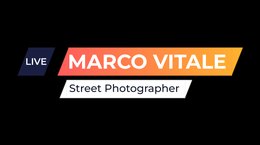
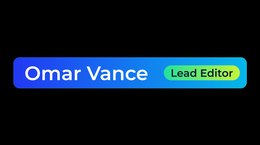
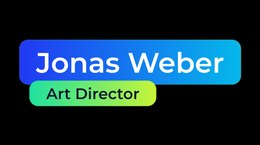
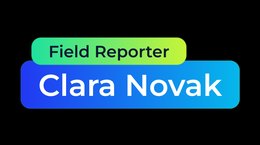
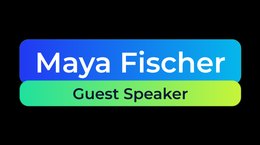
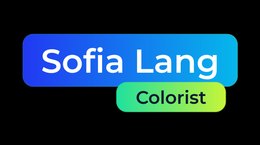
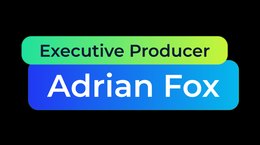
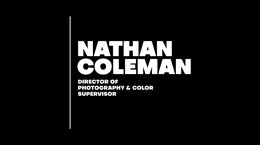
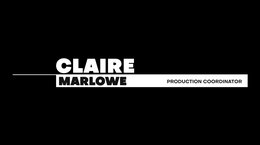
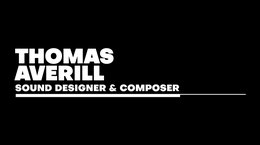
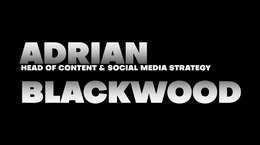
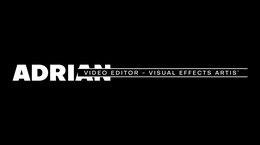
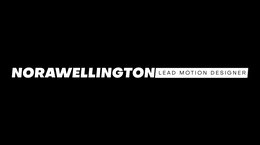
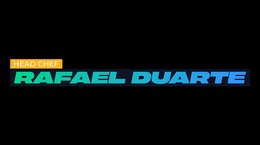
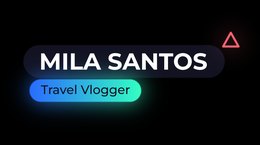
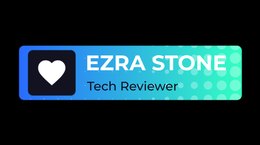
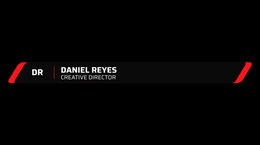
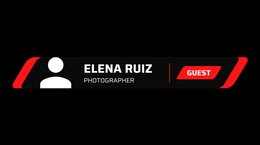
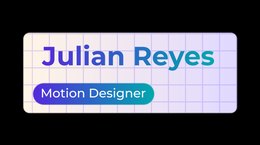
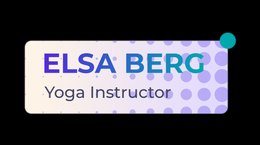
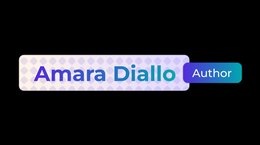
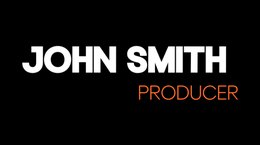
Lower Thirds · 148
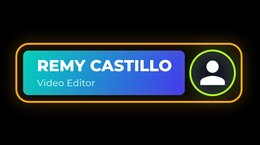
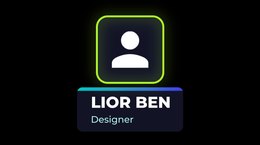
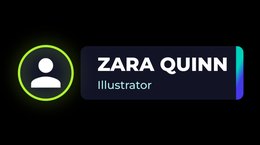
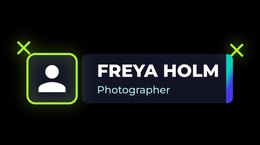
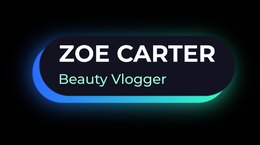
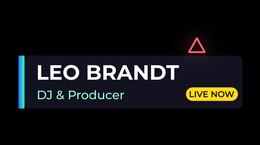
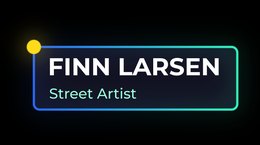
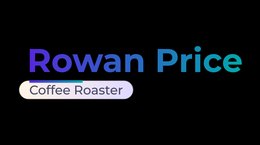
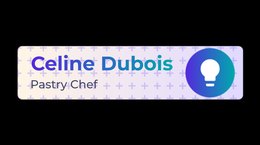
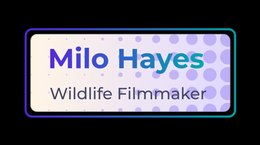
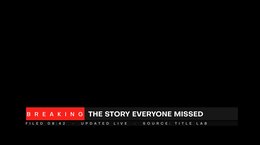
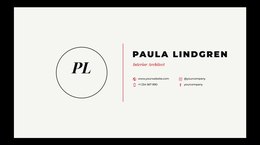
Names, roles and handles on plates that fit the text: gradient, minimal, pop, soft and broadcast bars.











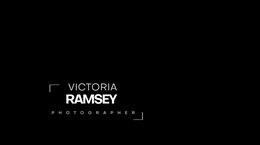
























































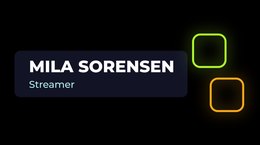


















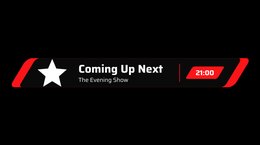




Cards · 18
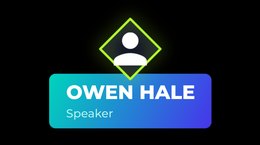
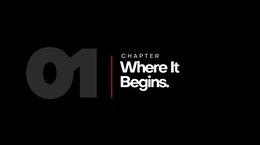
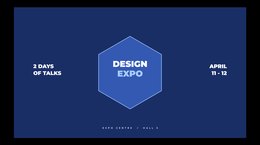
Speaker spotlights, chapter and news cards with neon frames, tags and icons.
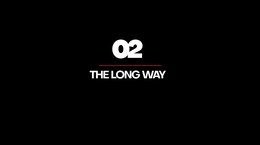






Buttons · 12
Subscribe, like and call-to-action buttons.





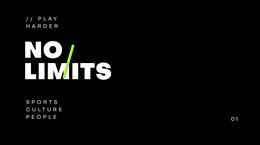
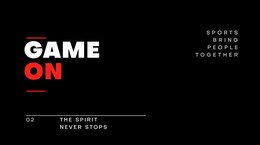
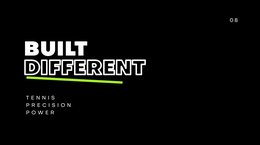
Sport · 22
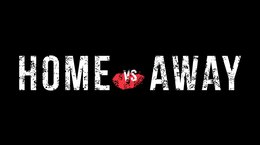
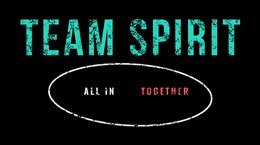
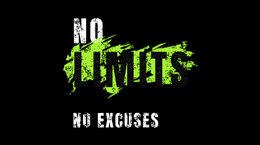
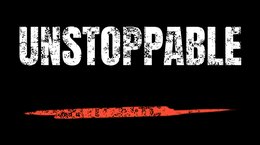
Bold sport titles, worn grunge type on brush strokes, and a tinted, animated media place under the words.










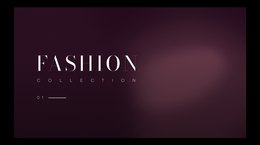
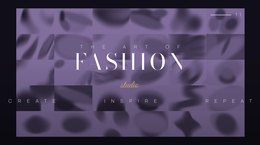
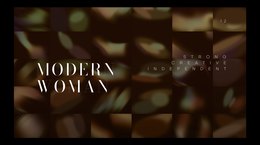
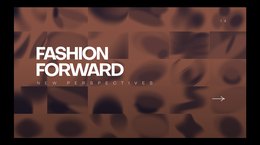
Fashion · 16
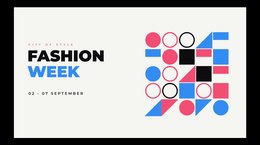
Elegant fashion titles with a duotone-tinted photo or video place underneath.








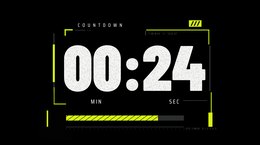
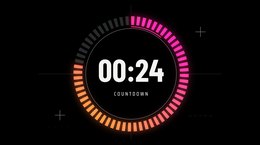
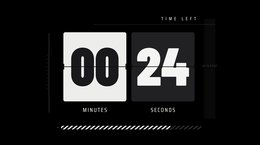
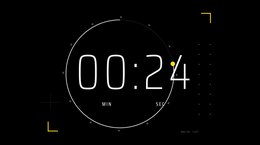
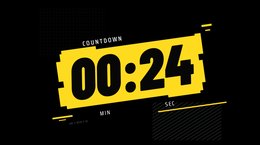
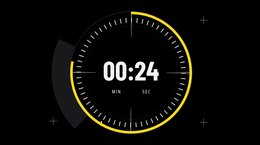
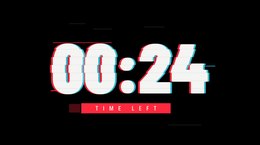
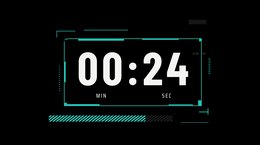
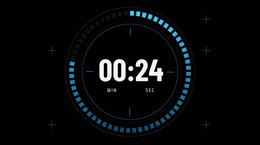
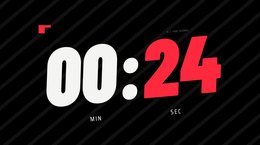
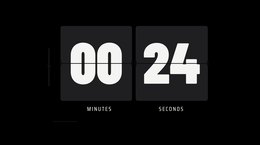
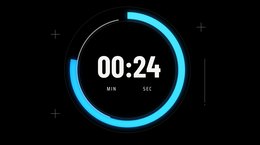
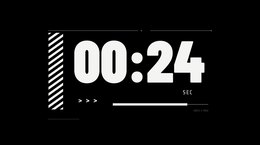
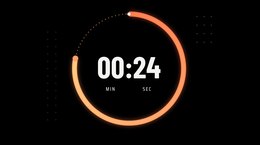
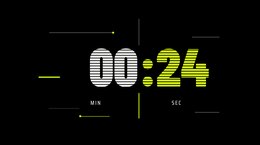
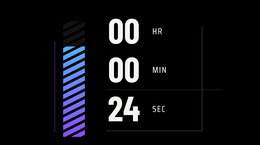
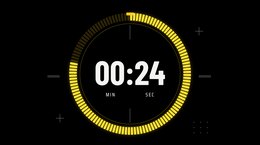
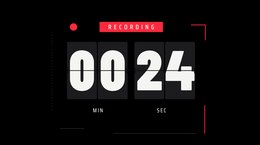
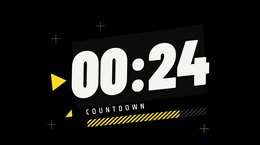
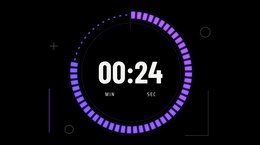
Timers · 20
Countdowns and running clocks.
Social · 28
Social handles, download and follow plates with the 8 platform icons.





















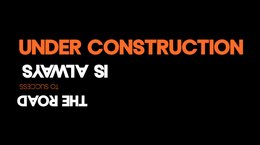
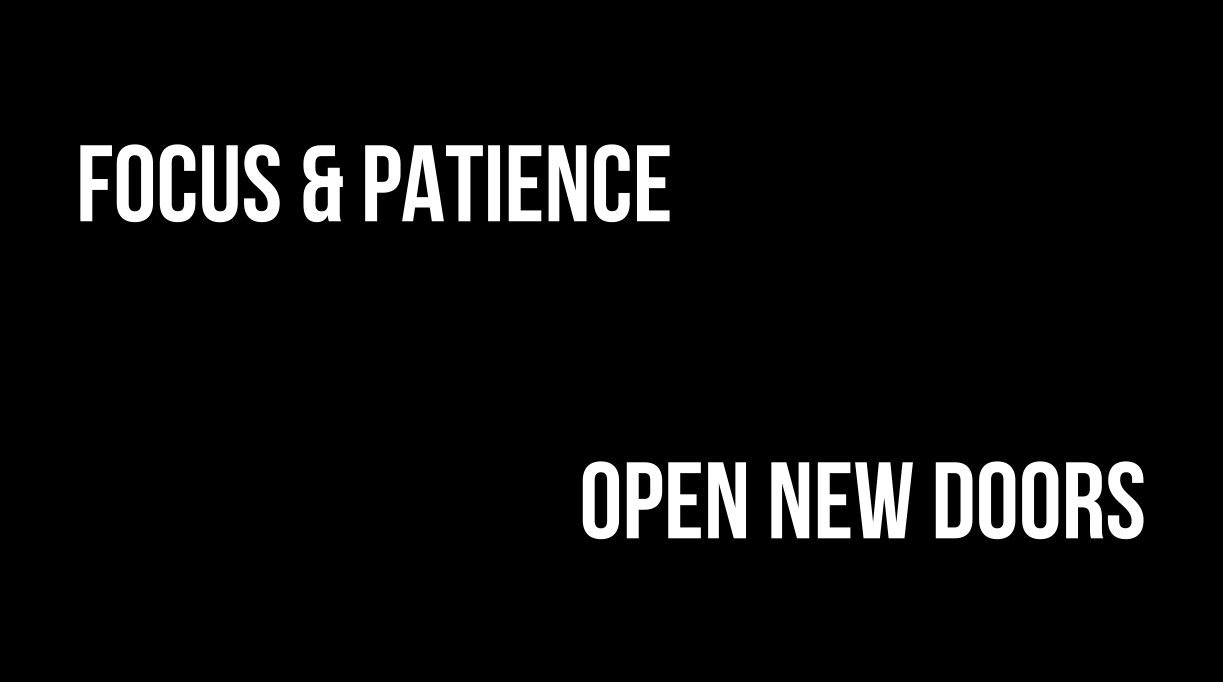
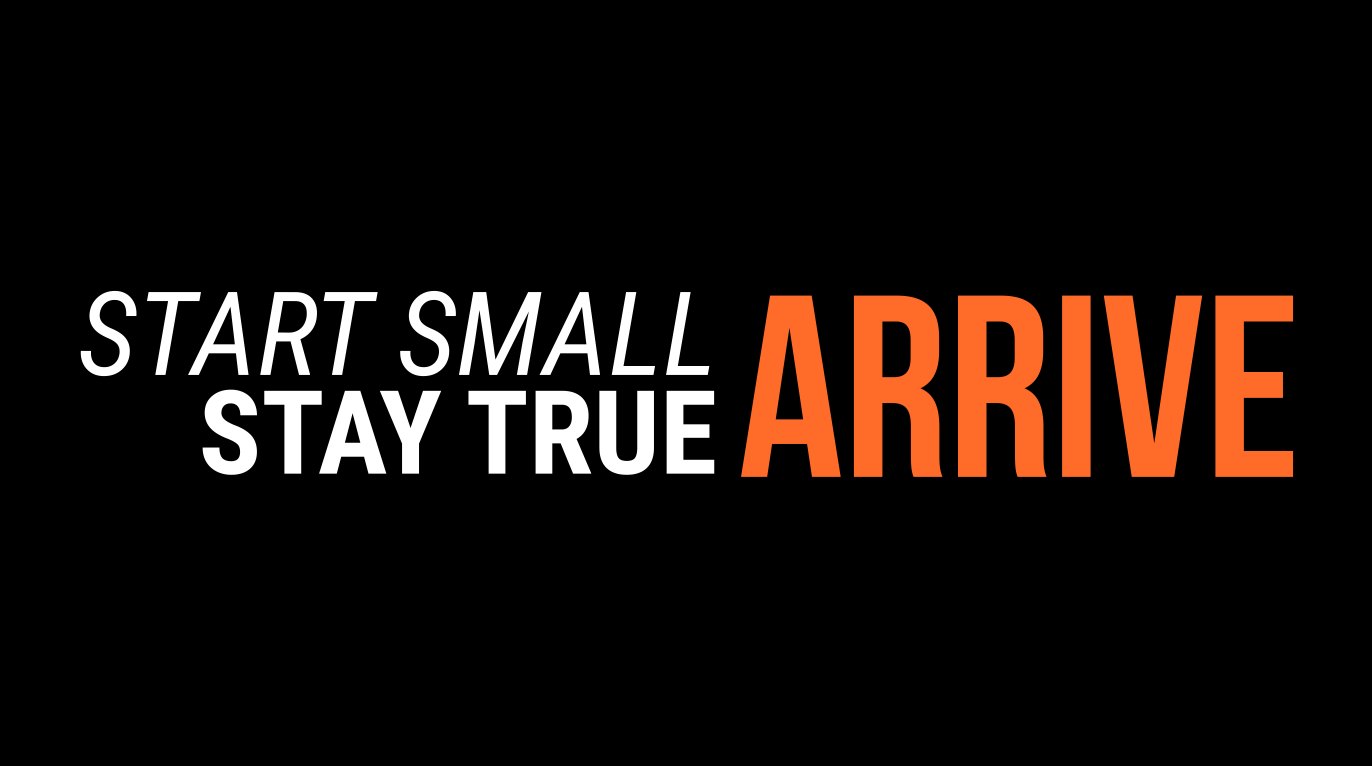
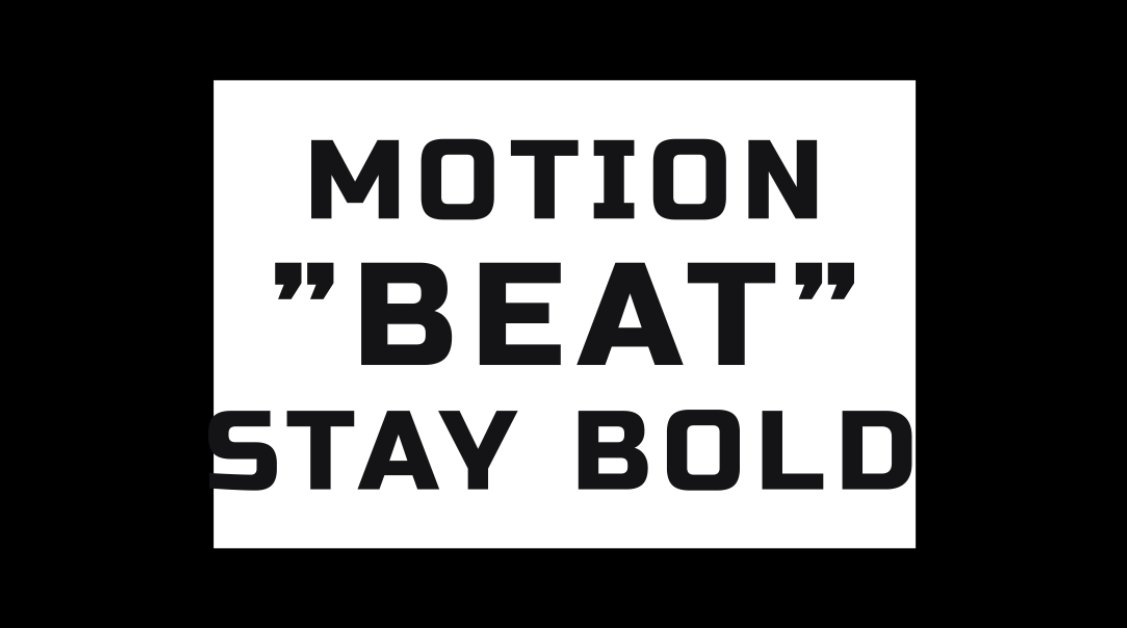
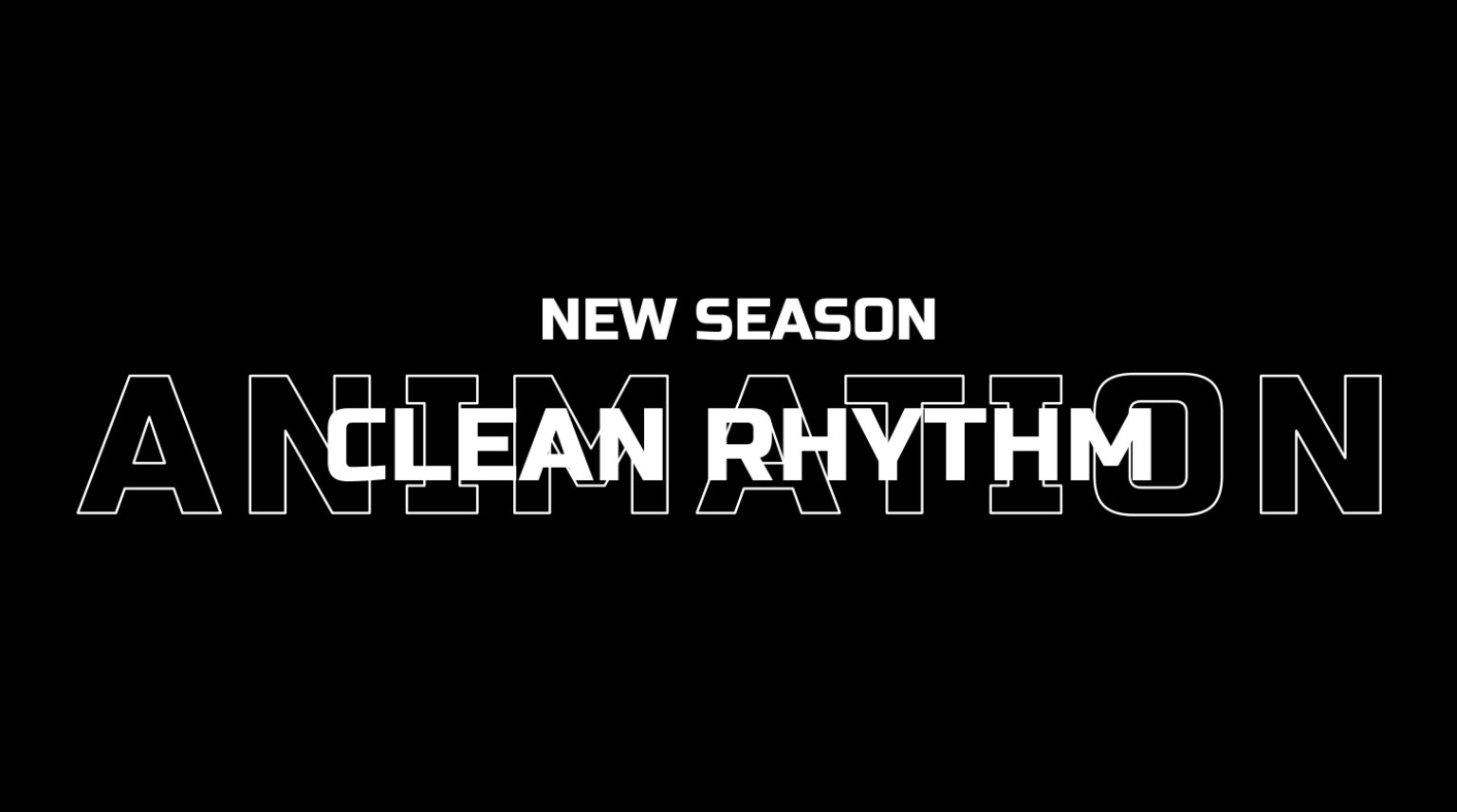
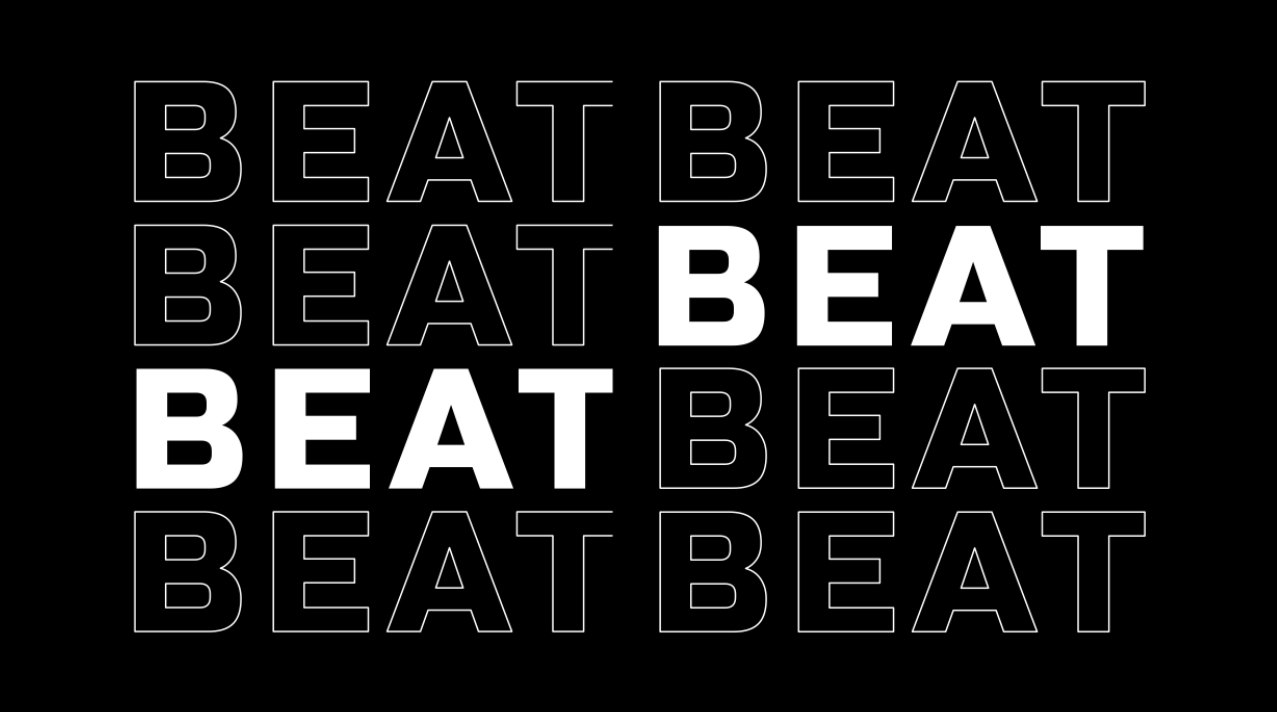
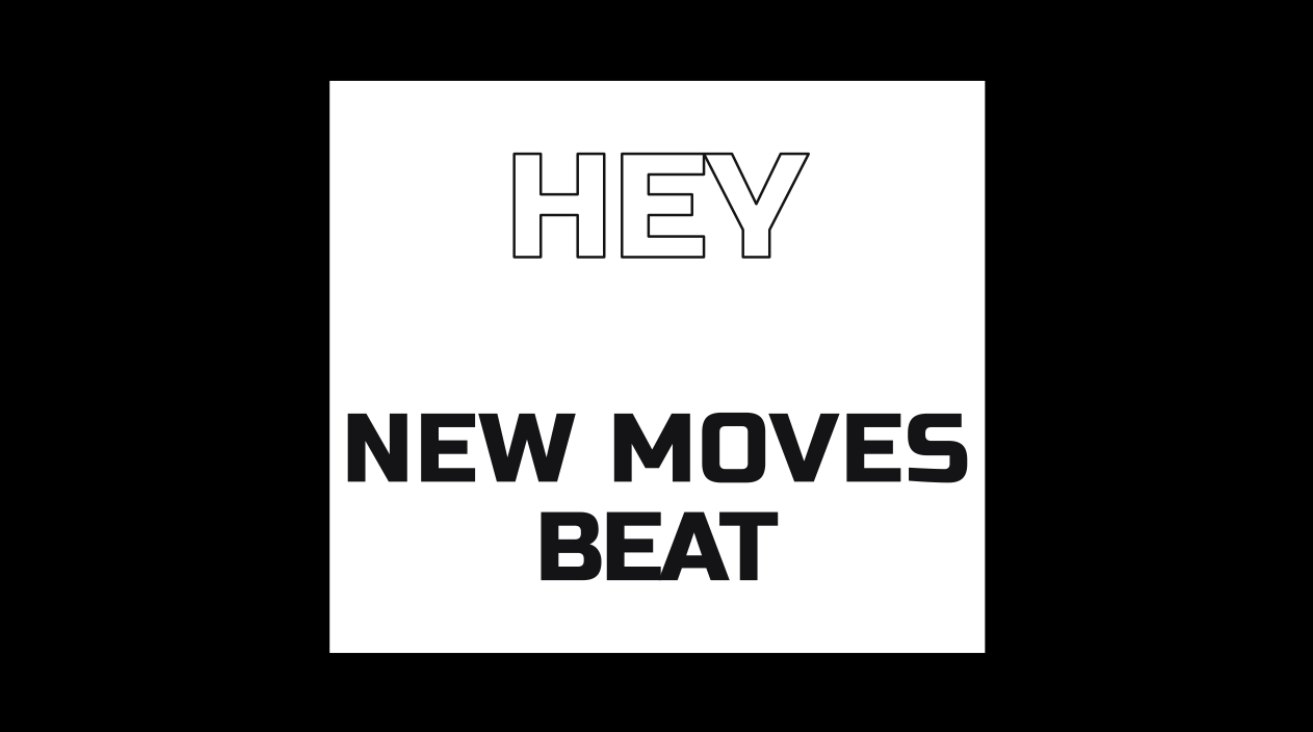
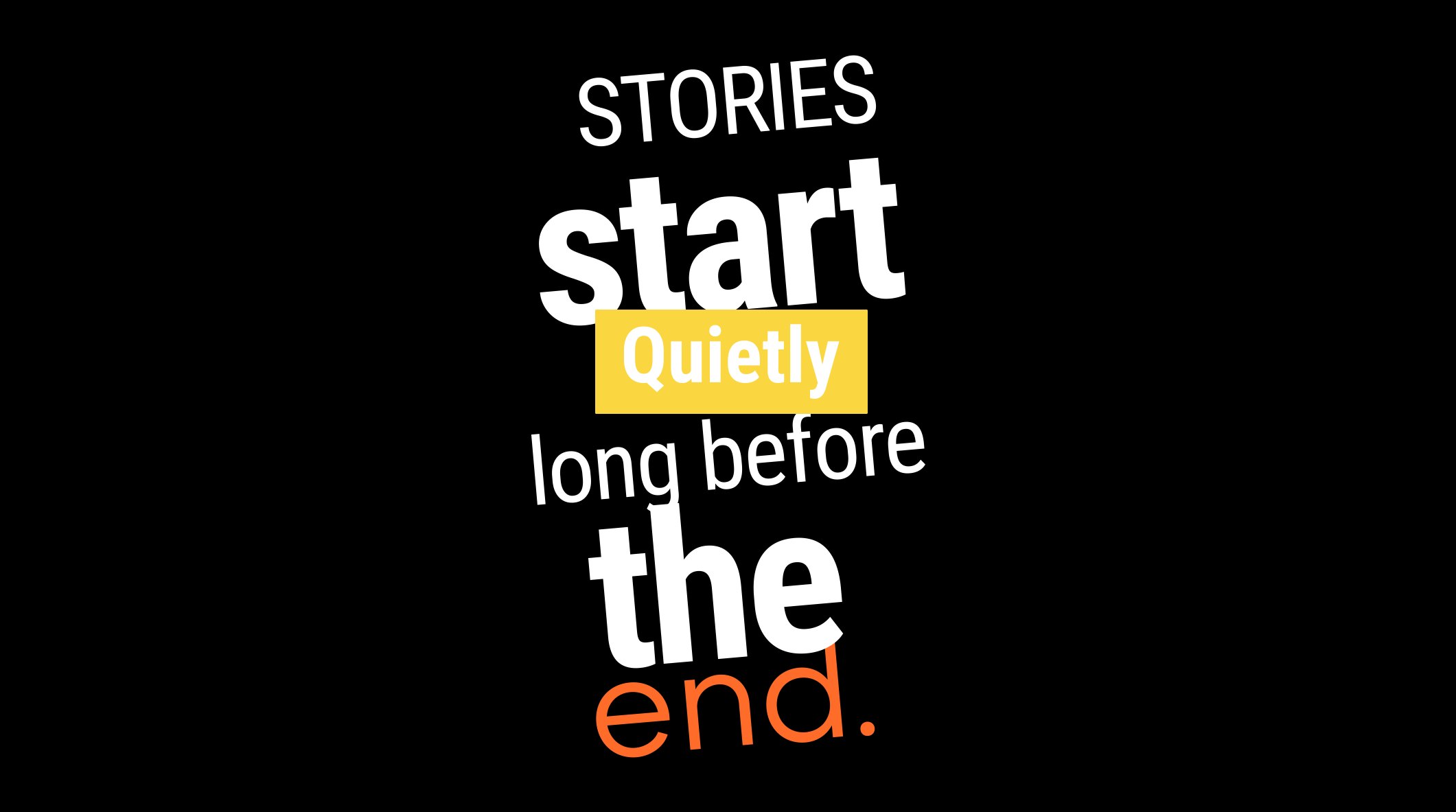
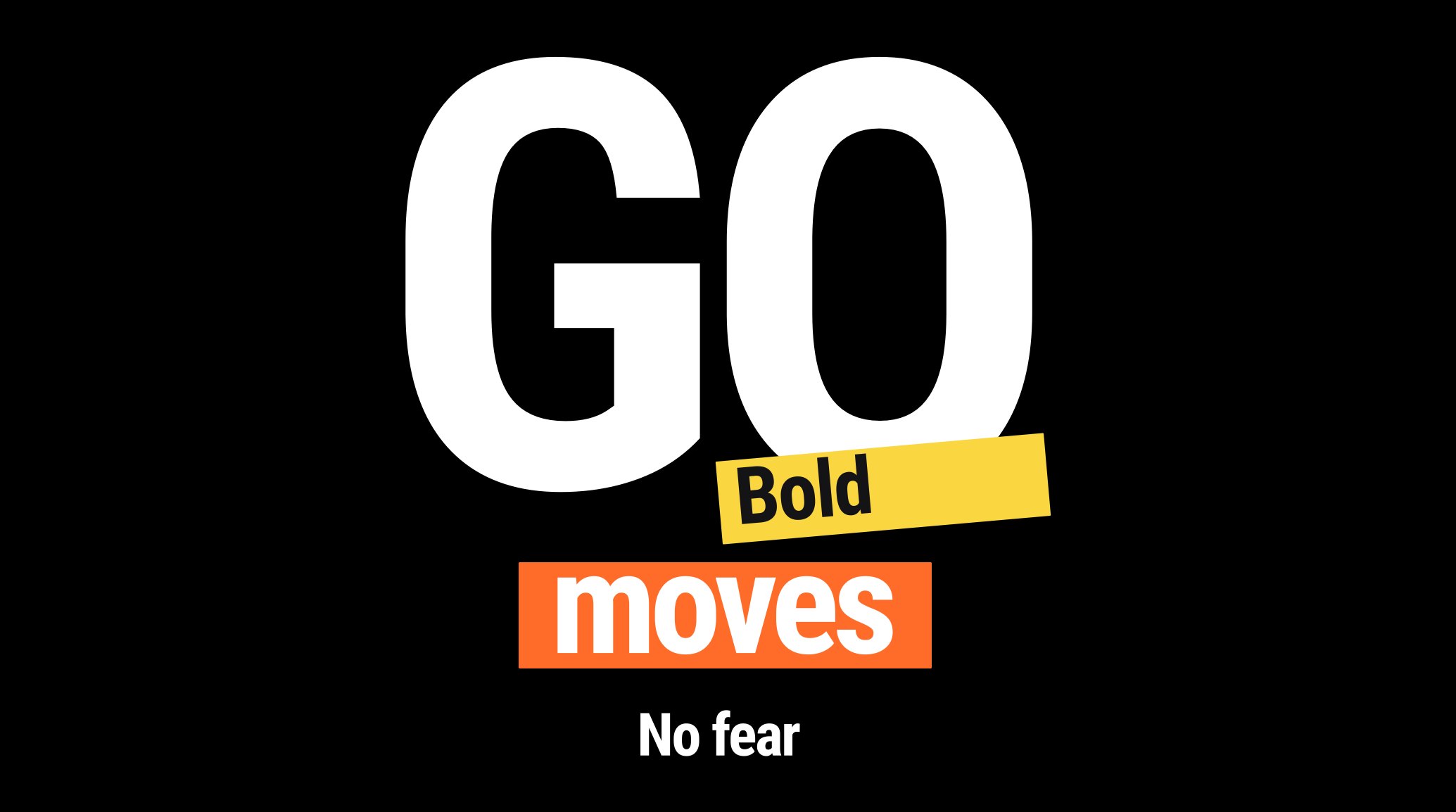
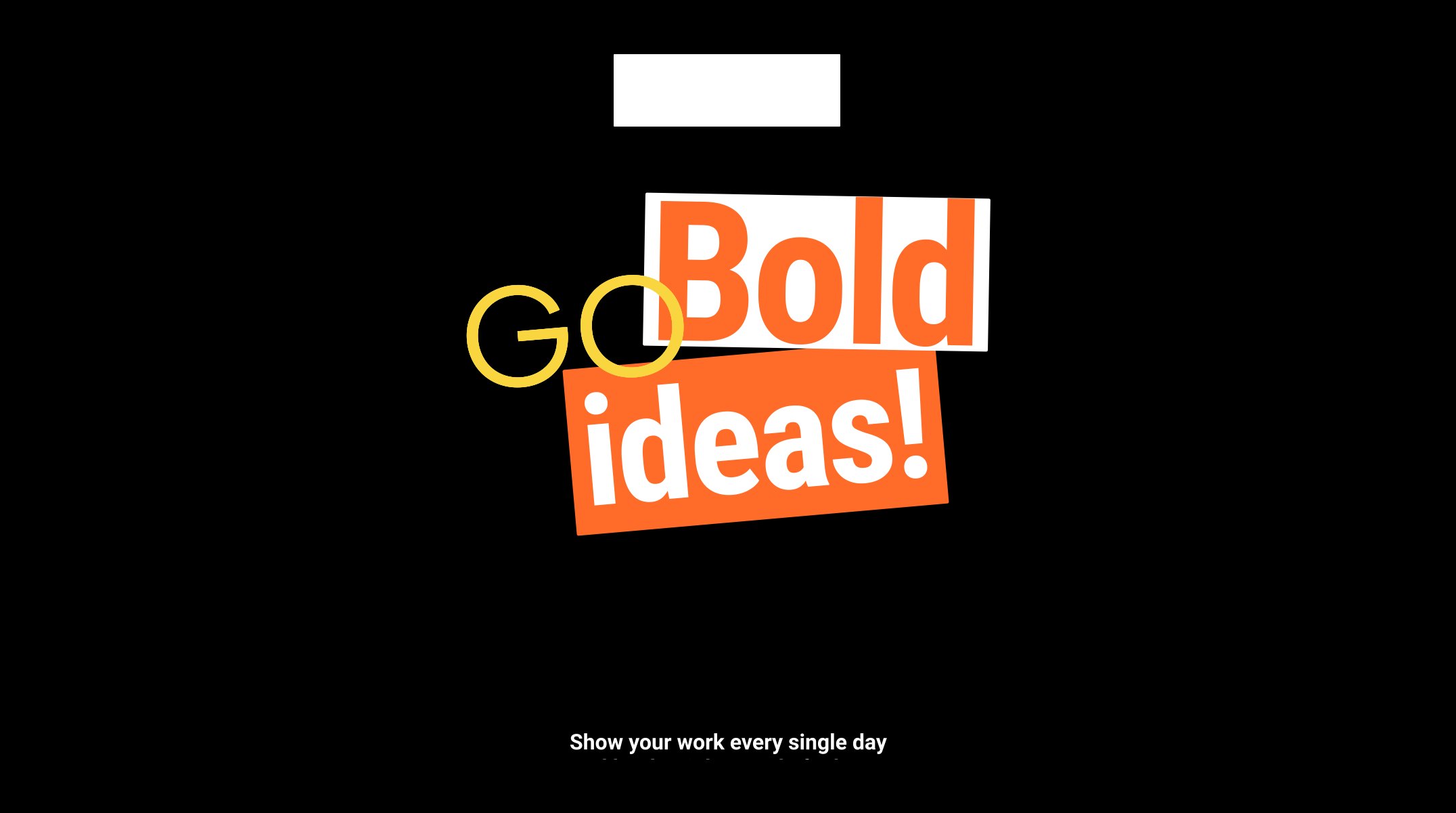
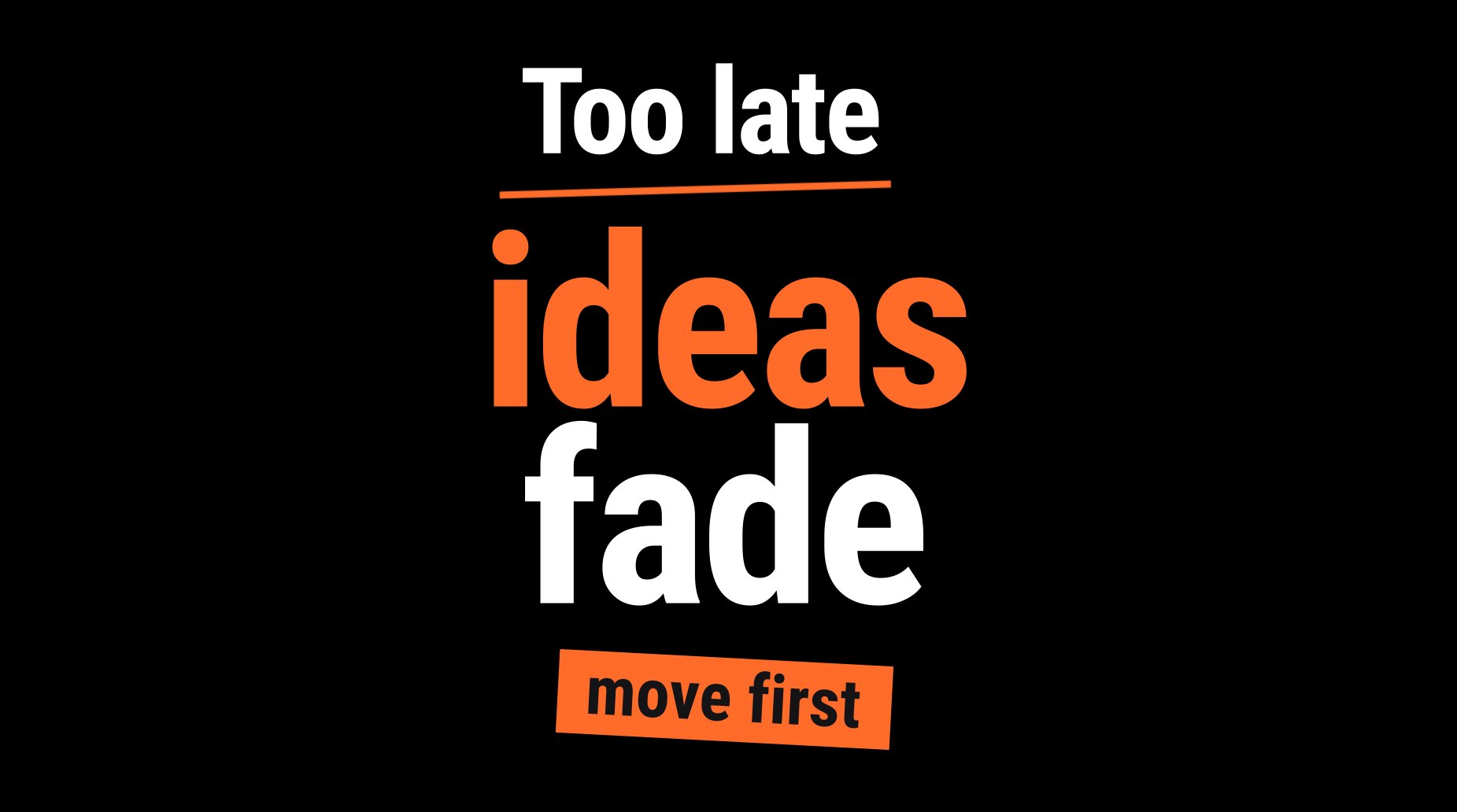
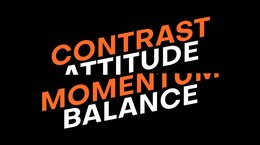
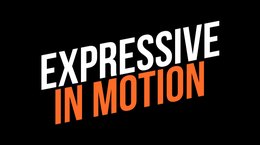
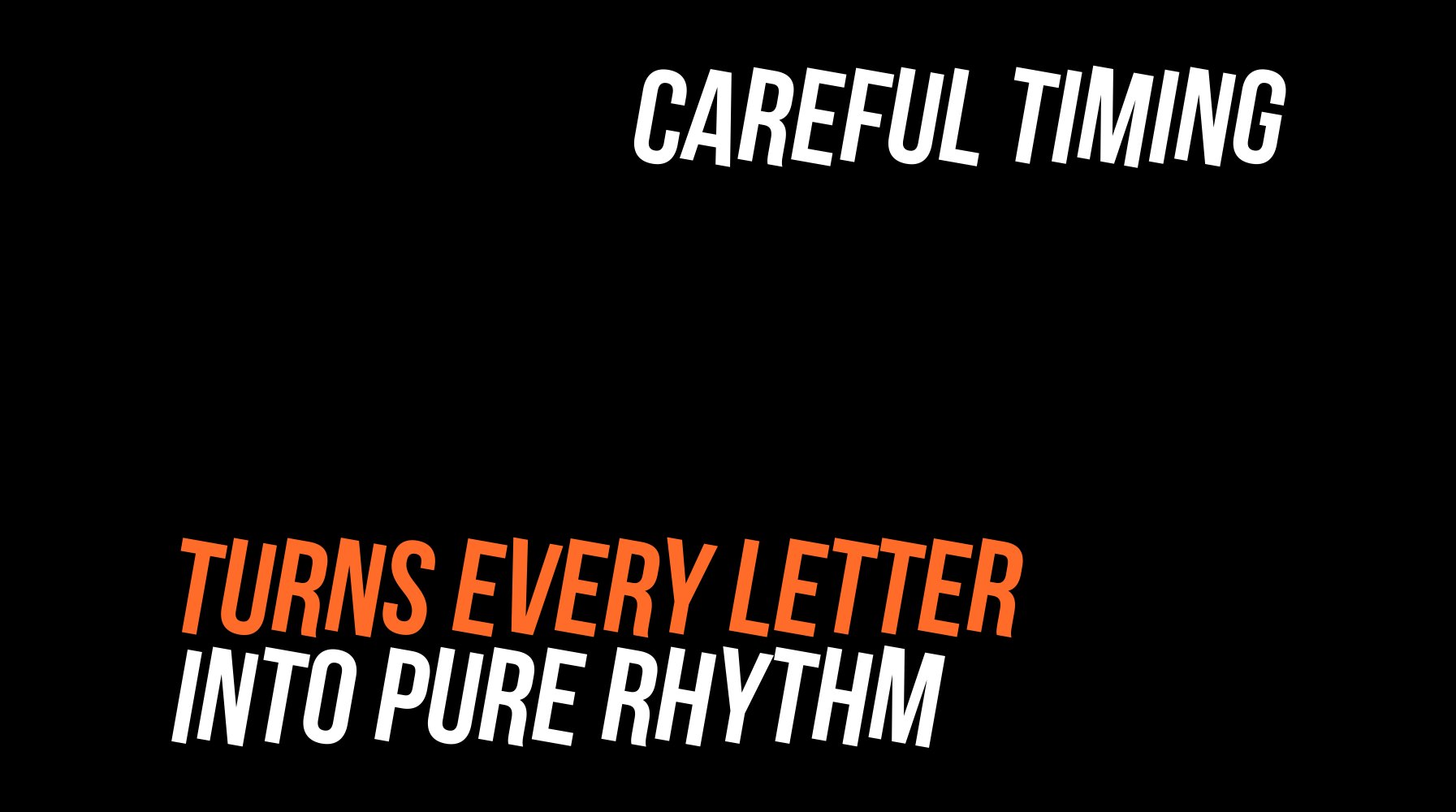
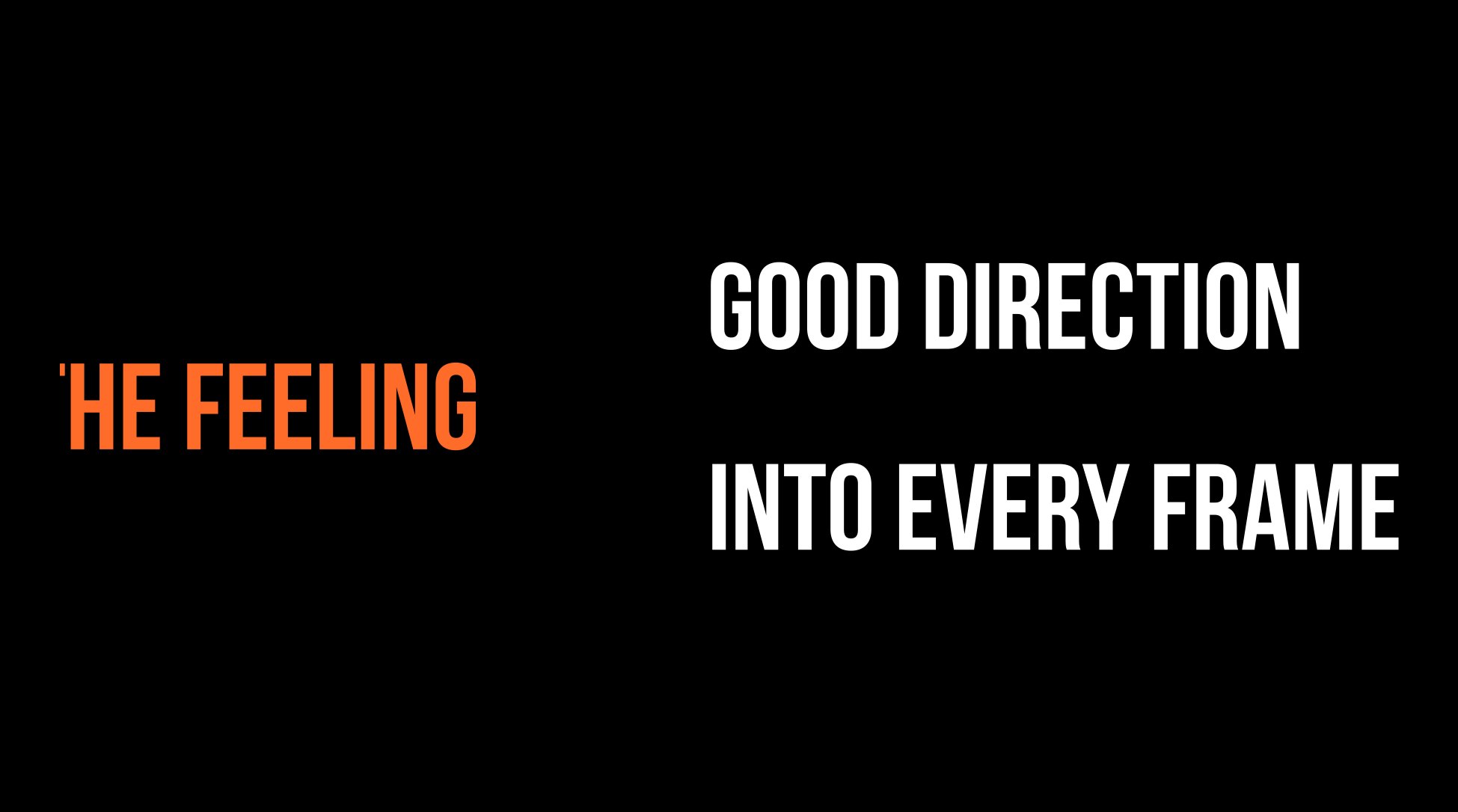
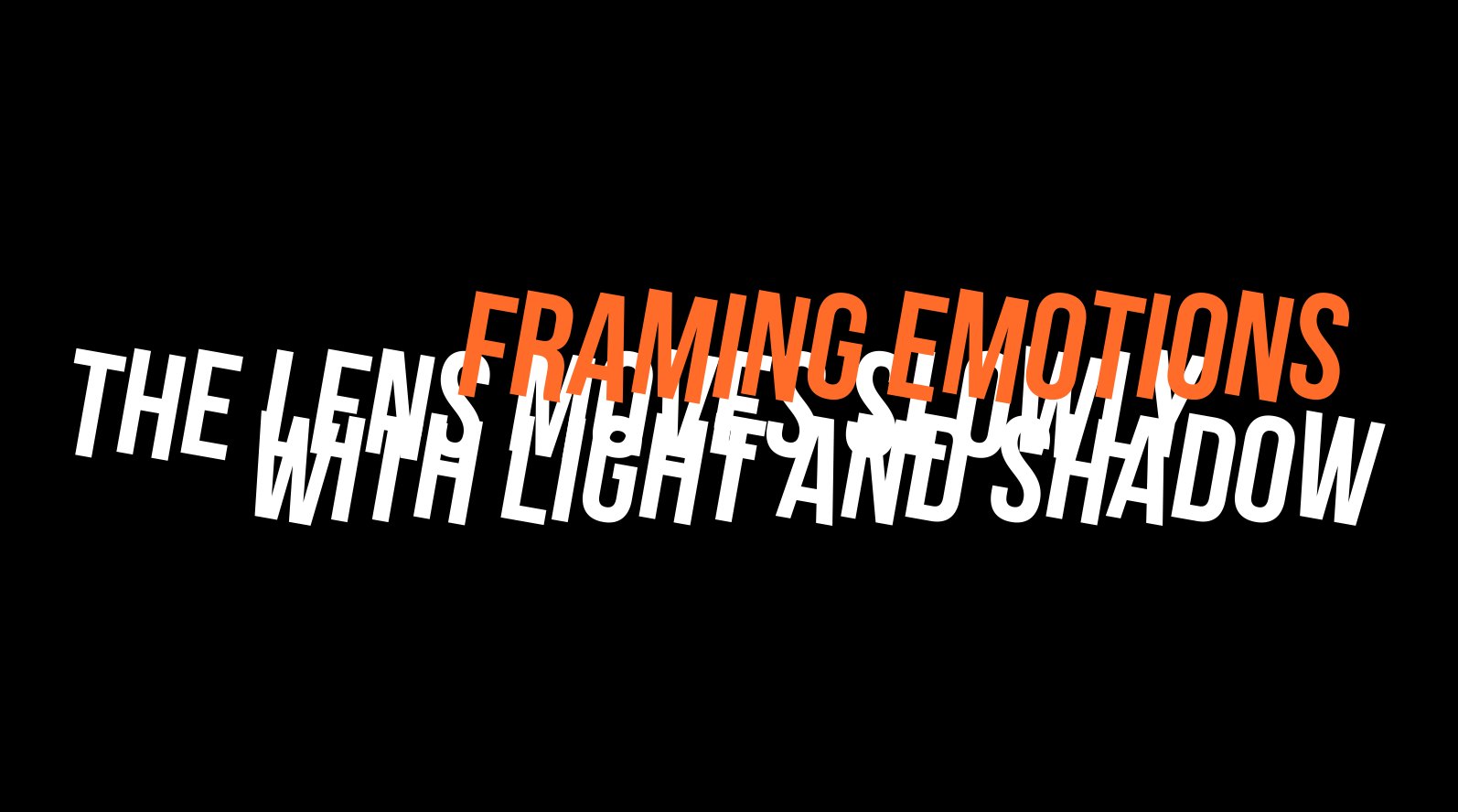
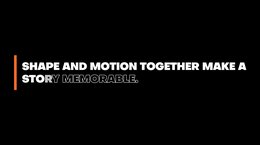
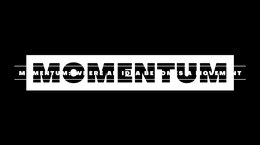
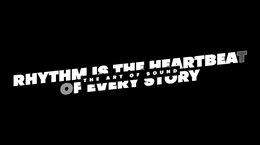
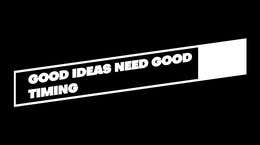
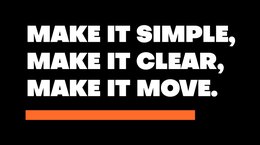
Kinetic · 130
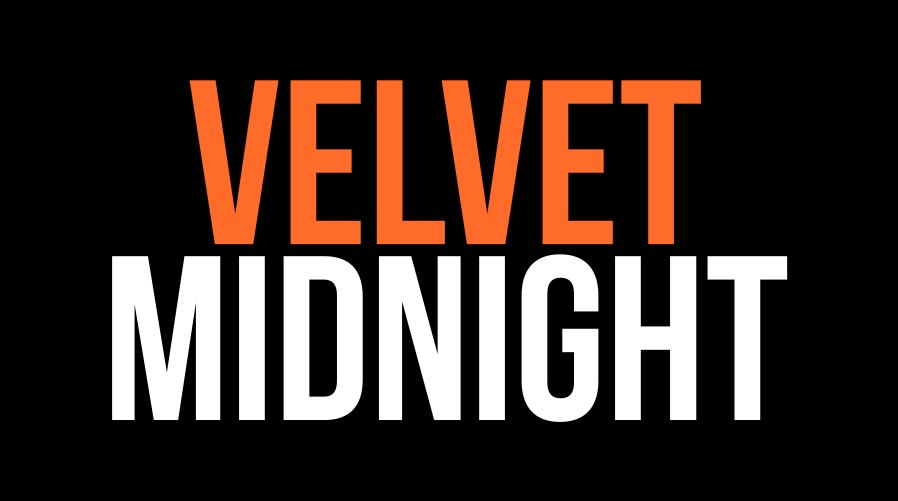
Kinetic word stacks that move on the beat.
































































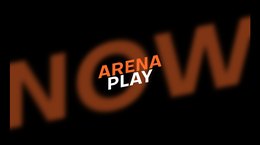
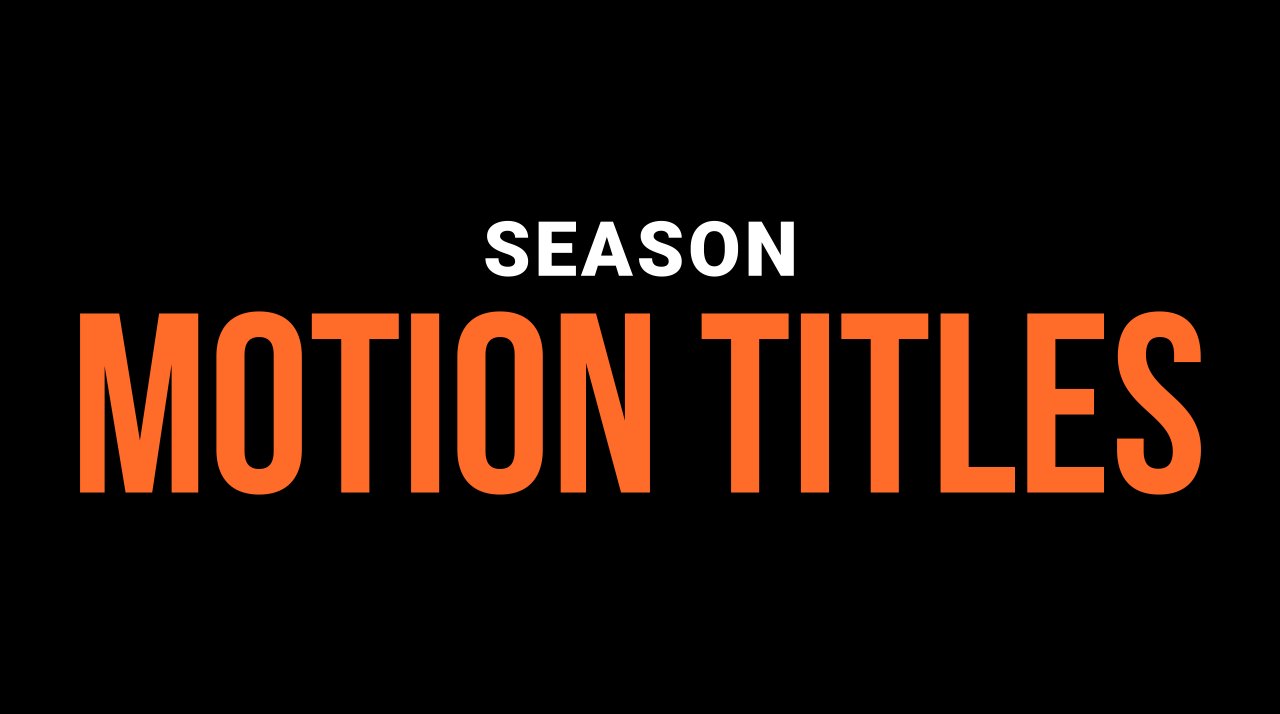
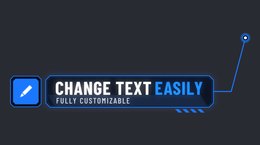
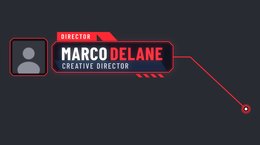
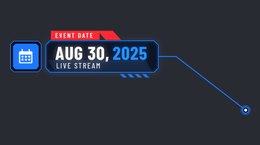
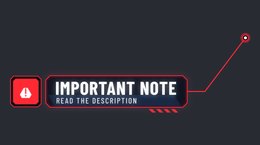
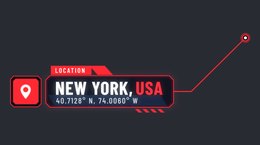
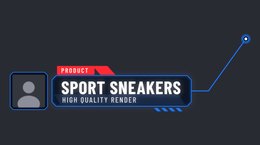
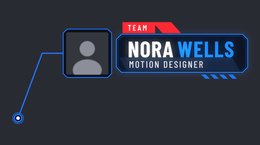
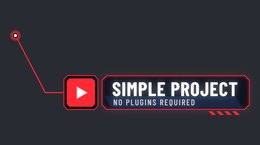
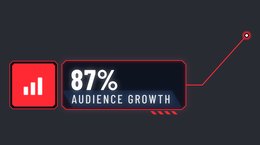
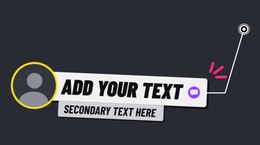
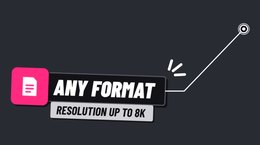
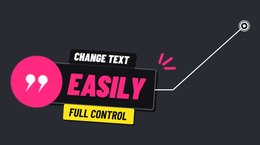
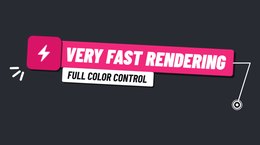
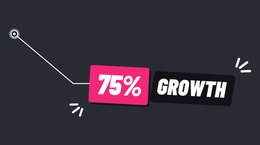
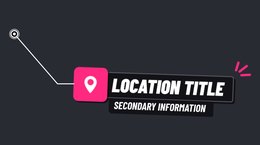
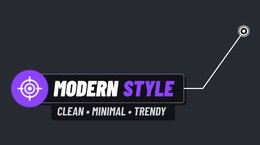
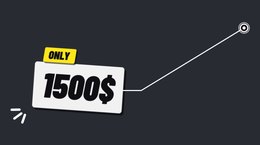
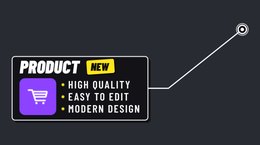
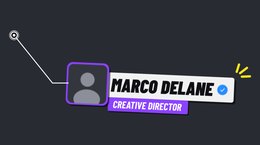
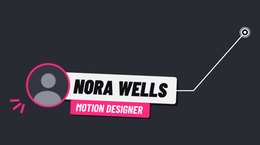
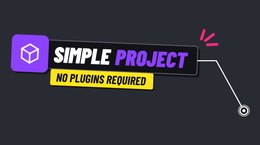
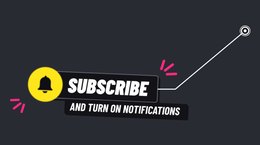
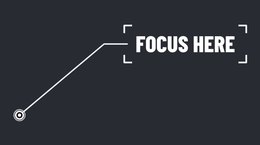
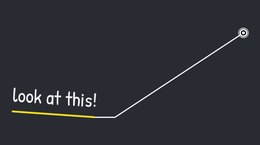
Callouts · 44
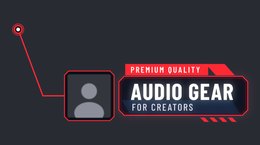
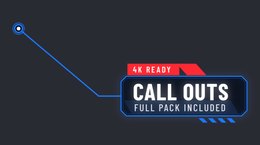
Pointers, HUD callouts and number tags with a line to any spot in the frame.













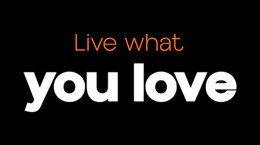
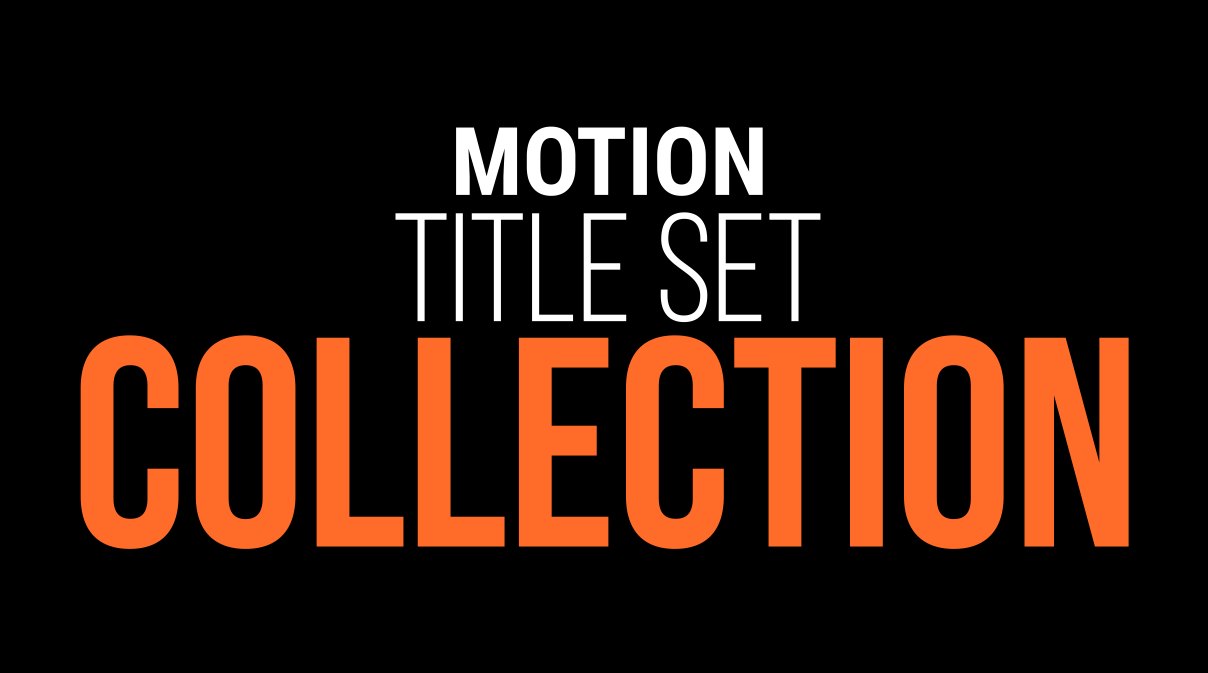
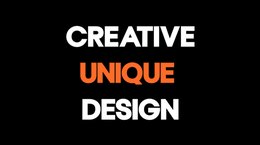
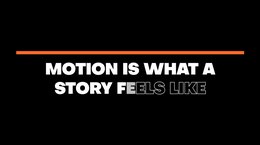
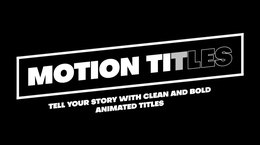
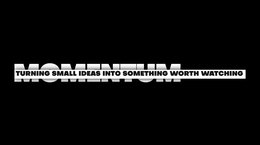
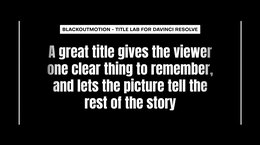
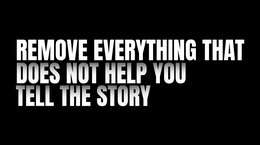
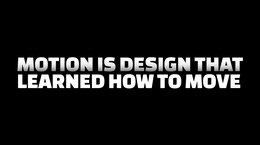
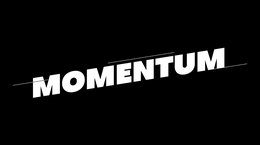
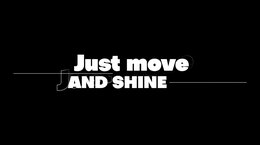
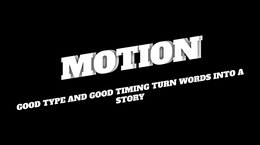
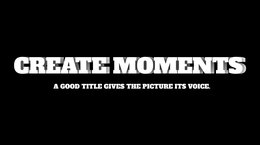
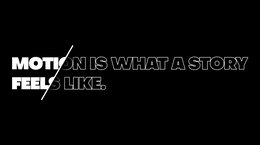
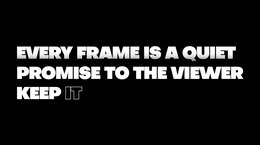
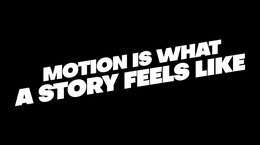
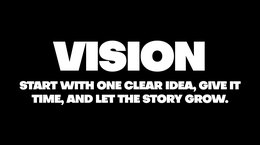
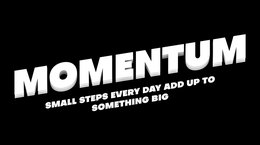
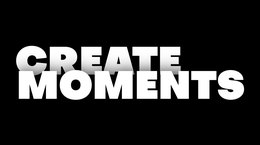
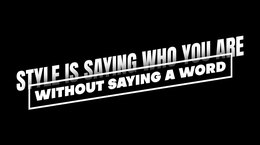
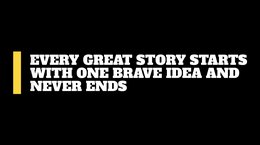
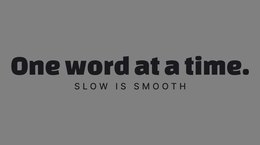
Text · 73
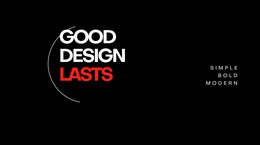
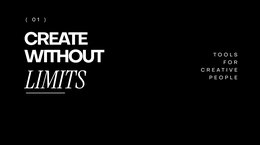
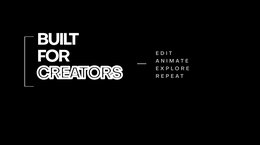
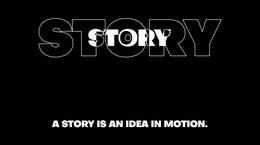
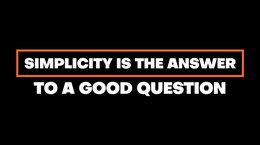
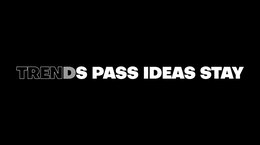
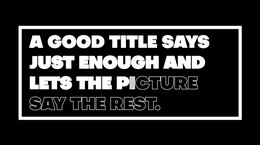
Modern big-type titles, one look per preset.





























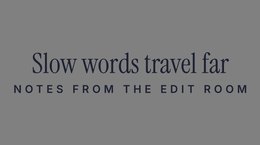
Typewriter · 10
Typed-on text with cursors and code looks.





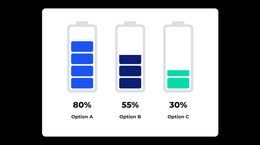
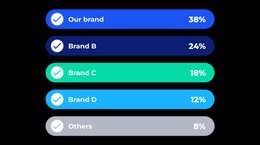
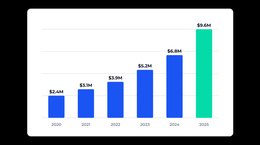
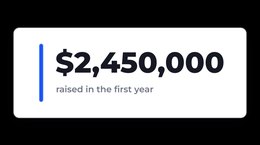
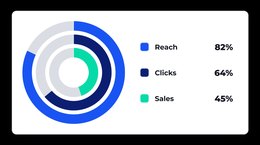
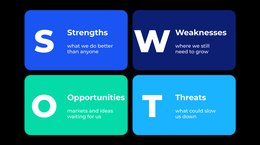
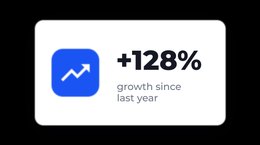
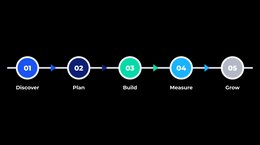
Infographics · 28
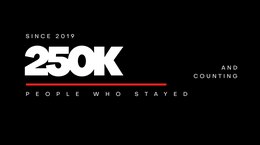
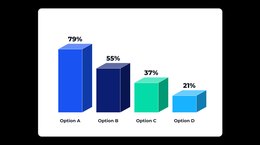
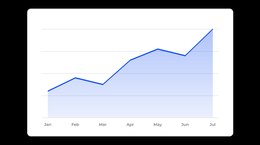
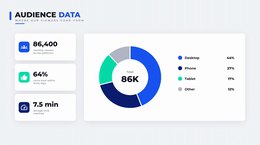
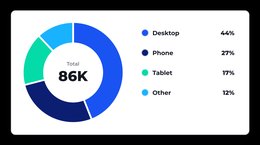
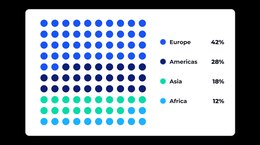
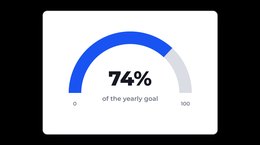
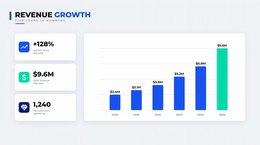
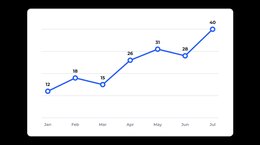
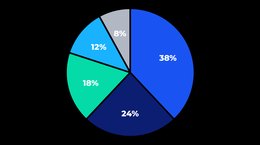
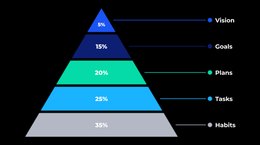
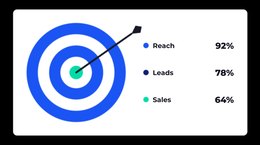
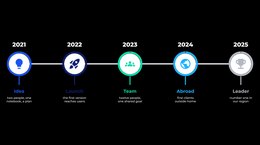
Bars, pies, pyramids, 3D bars, radar and counting numbers - data from a simple list.






Chat · 9
Chat bubbles and comment feeds with replaceable avatars.

Globe · 1
An animated world map with routes and pins.
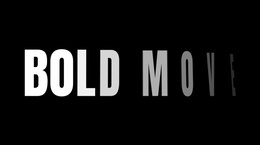
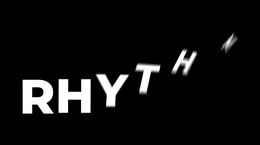
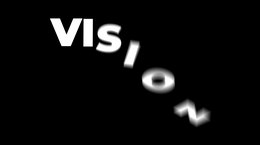
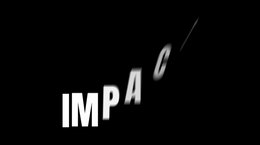
Text Animator · 60
60 text animation presets - type your words, pick the move.






















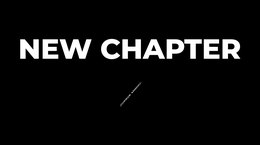
Credits · 1
Film credits in one title: roll, list or cards, up to 4 columns.
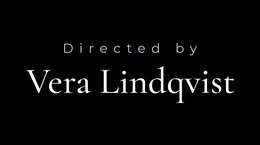
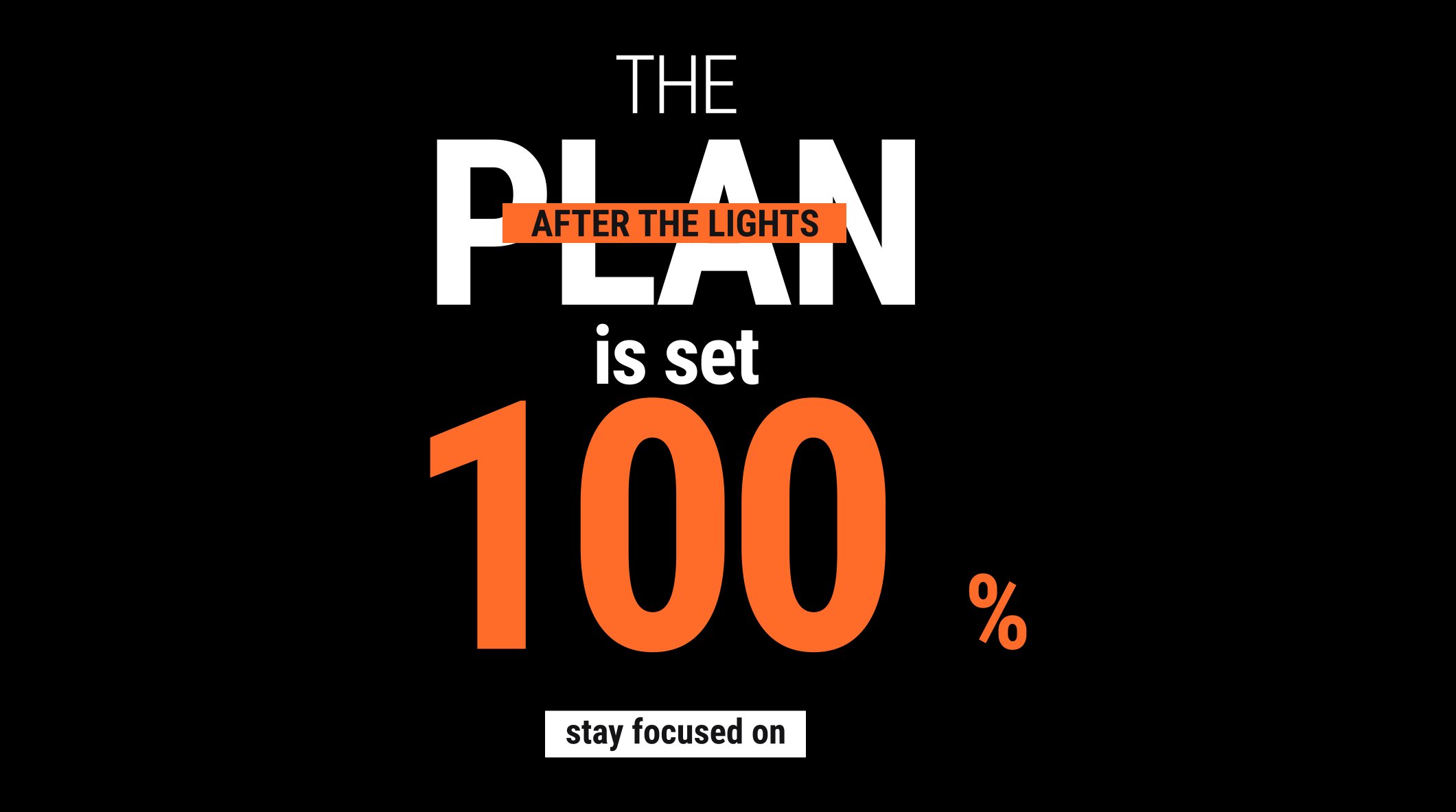
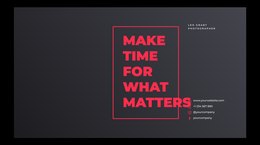
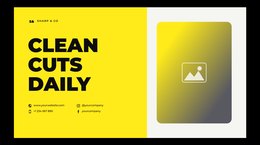
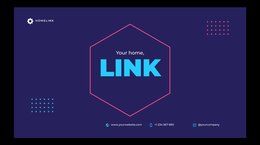
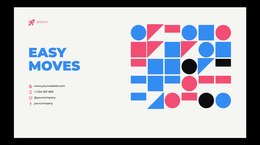
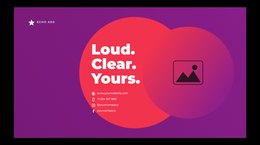
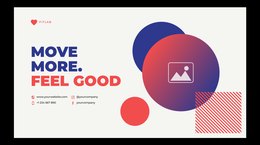
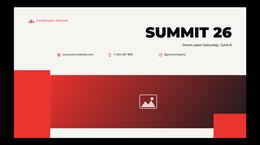
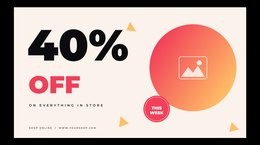
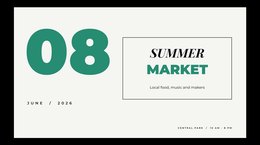
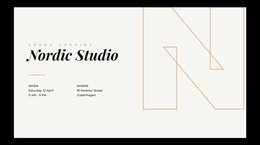
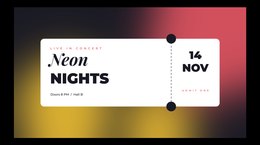
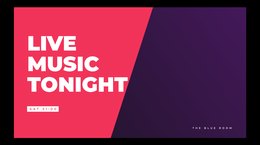
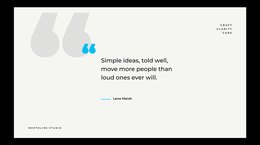
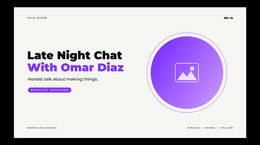
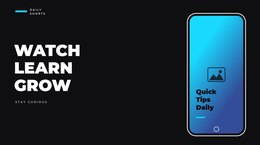
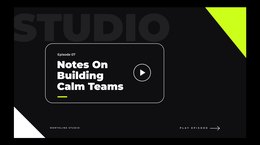
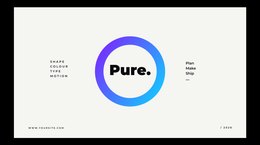
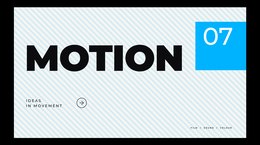
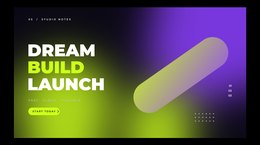
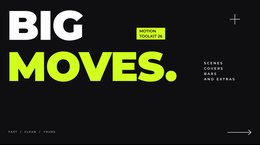
Typo Scenes · 56
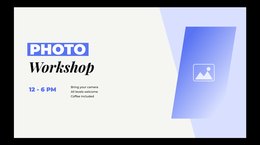
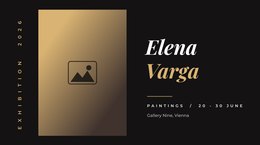
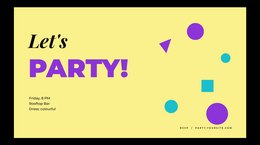
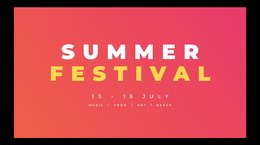
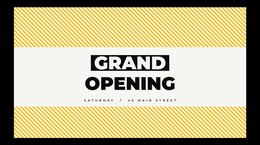
Full-frame typography scenes, covers and promo layouts with photo places.
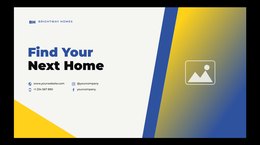


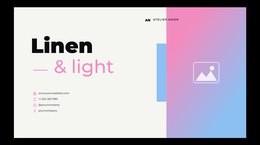



















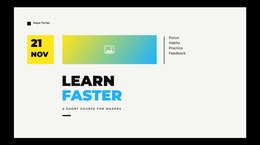
Waves Backgrounds · 11
Looping wave backgrounds.











Liquid Light Backgrounds · 15
Soft liquid gradients, light.



Liquid Dark Backgrounds · 15
Soft liquid gradients, dark.





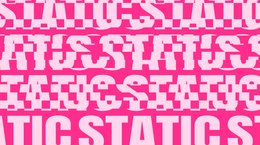
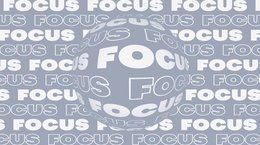
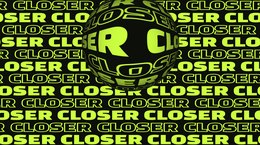
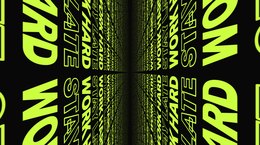
Kinetic Posters Backgrounds · 28
Full-frame looping kinetic type posters.















Sport Media Effects · 6
Media tint + motion effects for sport clips.

Fashion Media Effects · 6
Duotone media tint + motion effects for fashion clips.





1. Installation
- Double-click Blackout Motion Toolkit.drfx (or drag it onto the Fusion page) and confirm Install.
- Restart DaVinci Resolve. Titles appear in the Edit page → Effects → Toolbox → Titles (Fusion Titles) under Blackout Motion Toolkit, generators under Generators, media effects under Effects.
- Fonts are not included. Install the fonts the titles use (below) before opening them - or pick any font of yours in the Inspector.
Fonts used: Montserrat, Bebas Neue, Manrope, Roboto, Roboto Condensed, Playfair Display, Barlow Condensed, Anton, Inter, Inter Tight, Poppins, Saira, Saira Condensed, Russo One, Exo 2, Alfa Slab One, Knewave, Oswald, Changa One, Patrick Hand, Instrument Serif, Instrument Sans Condensed, Bodoni Moda, DM Serif Display, Space Grotesk, Great Vibes, Permanent Marker, Cormorant Garamond, Kaushan Script, Objective, Cottorway, Sequel 100 Black, Impact.
2. How to use
- Drag a title onto a track above your clip. Trim it to the length you need - the entrance and exit keep their speed.
- Select it and open the Inspector → Tools: type your texts, change fonts, colours and the In / Out Seconds.
- Logo / photo places: set the choice to Image File and pick your file in the File field.
- Sport and Fashion titles: page Media → Media: Media File, pick a photo or video; choose the tint, its colours and the media motion.
- Media effects: drag TL_Tint_* from Effects onto any clip to tint and animate the clip itself.
- Globe, Typewriter, Credits and Chat: see their settings, step by step.
3. Help
A title shows a different font
- The font is not installed: install it (see Fonts used) and restart Resolve, or pick any font in the Inspector.
New titles do not show up
- Restart DaVinci Resolve after installing or updating the bundle.
Playback is slow
- Use Render Cache (Smart) or a timeline proxy while editing; the final render is full quality.
4. Requirements
- DaVinci Resolve (free or Studio). Tested on DaVinci Resolve 20.3.
- No third-party plugins.
- Any resolution and frame rate.